
Log inspector shows a detailed, ordered set of operations (read about operations) which a given log underwent during processing.
You can use log inspector to dig into how data looked at a given point in time during log processing. You can use this for troubleshooting to find where or what might have gone wrong with a failed log, or you can use this during implementation to understand how your subscription settings are working. Learn more about logs.
- Any user can search and view log metadata. However, a user must be assigned to a support or an engineer role to run log inspector. Learn about user roles.
- Understand that log inspector uses current configuration settings. If you've changed any settings since the log processed, log inspector results might differ.
- Understand that log inspector doesn't re-send the log. Log inspector mocks the processing and delivery for troubleshooting purposes.
- Log in to the Redox dashboard.
- From the navigation menu, click the Logs page.

- By default, the search bar and filters display, along with any logs from the last seven days. Use search terms, filters, or a combination of both to find the log you want to investigate. Click the relevant log in the list.
- The log details display on the right, which includes the log ID and processing stages. Click any of the log stages to view details for a given stage.
- To investigate log processing in more detail, click the Log inspector button. You won't see this option if you're not assigned to an engineer or support role.
- Log inspector runs and opens a new page with the source, destination, timestamp, and operation details (review operation types). Operations appear in sequential order.
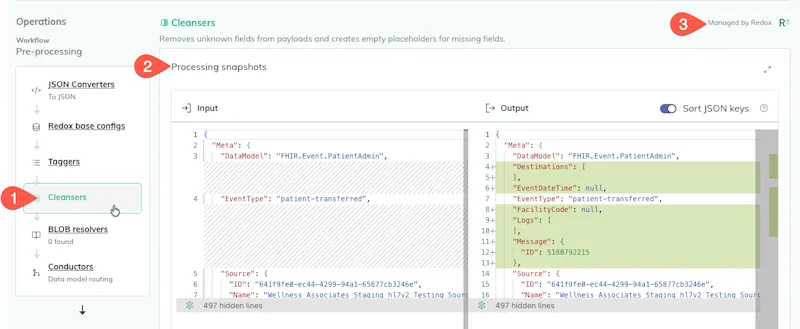
Run log inspector Changes to subscription settingsDifferences in delivery operation - From the lefthand menu, select an operation to view its details. The details may include operation metadata (e.g., identifiers, owners), request and response metadata, and any payload snapshots.
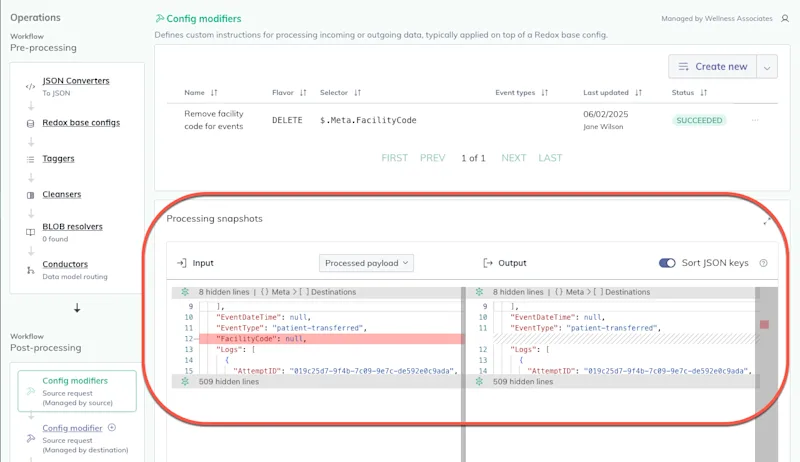
Operation details Who last updated an operation - Review any diff views in the payload snapshots for any operations. Input payload snapshots show what the data looked like before the operation began, and any output payload snapshots show what the data looked like after the operation ran. This will help you narrow down where an unexpected error or change occurred during processing.
Input and output payloads Tip about errors - Modify any settings and re-run log inspector by either clicking the Run log inspector button or refreshing the page.
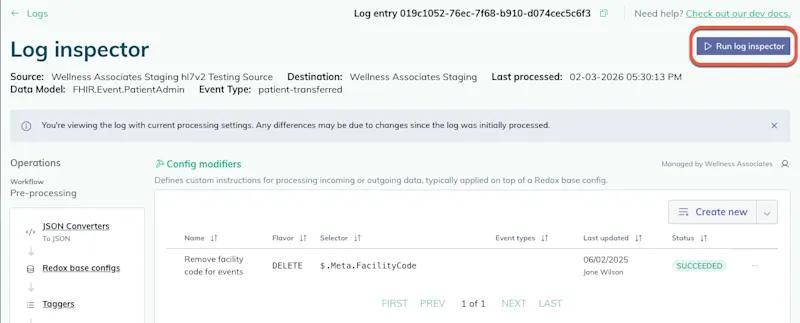
Re-run log inspector
Platform API endpoints