Each user in a Redox organization can view and edit these user settings in the Redox dashboard:
- profile details, including user name and phone number
- multi-factor authentication (MFA)
- Redox dashboard password
- These instructions are for non-SSO organizations. Single sign-on (SSO) organization members can only edit their user name. No other fields are visible.
- Log in to the dashboard.
- Click your username at the bottom of the navigation menu.
- From the user menu, select the User settings option.
- By default, the User info tab opens.
- Follow the steps to view user settings.
- Click the Edit button.
- Make any changes to the name or phone fields.
- Click the Save button.

Edit your user profile details
Learn more about Redox’s recommendation for MFA.
- Follow the steps to view user settings.
- If you don’t have MFA enabled, a warning banner displays at the top. Click the Enable MFA method button.
- Under Preferred method, select the radio button for either text message or phone call.
- Enter the country code, then enter the phone number.
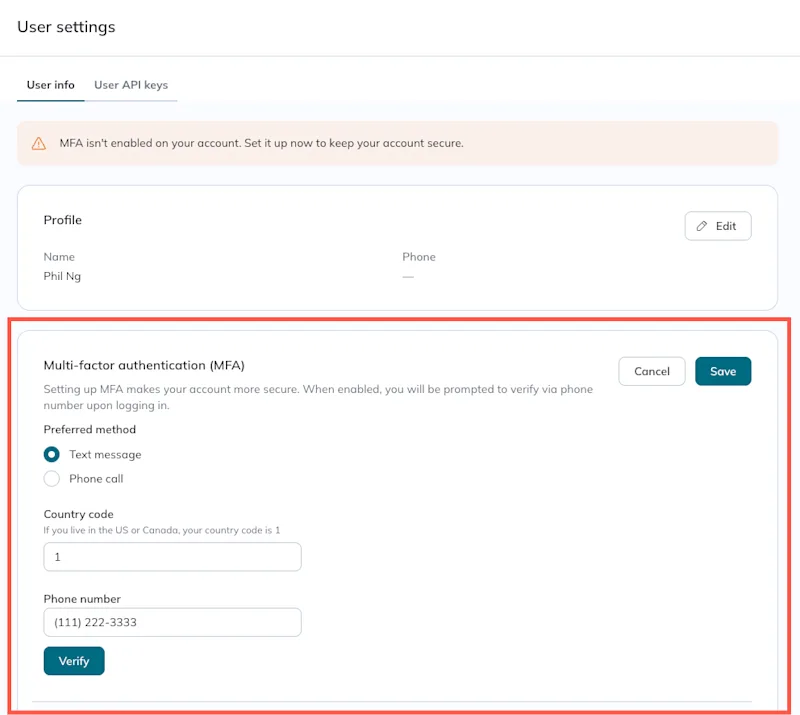
MFA settings - Click the Verify button to enable MFA.
- In the Authentication code field, enter the code you received from the text message or phone call. If you didn't receive a text or call, click the Didn’t receive a code? link to try again.
- Click the Save button.
- The next time you log in to the Redox dashboard, you'll be prompted to enter an authentication code. You can opt to remember the device for 30 days or provide a code at every login.
- If you need to change your MFA method later, delete the current verified method and add a new one.
Viewing other users’ MFA status

- Follow the steps to view user settings.
- Under the Password section, click the Reset password button.
- Enter the current password.
- Enter the new password, then enter it again in the Confirm field. Review Redox’s password requirements.
- Click the Save button.
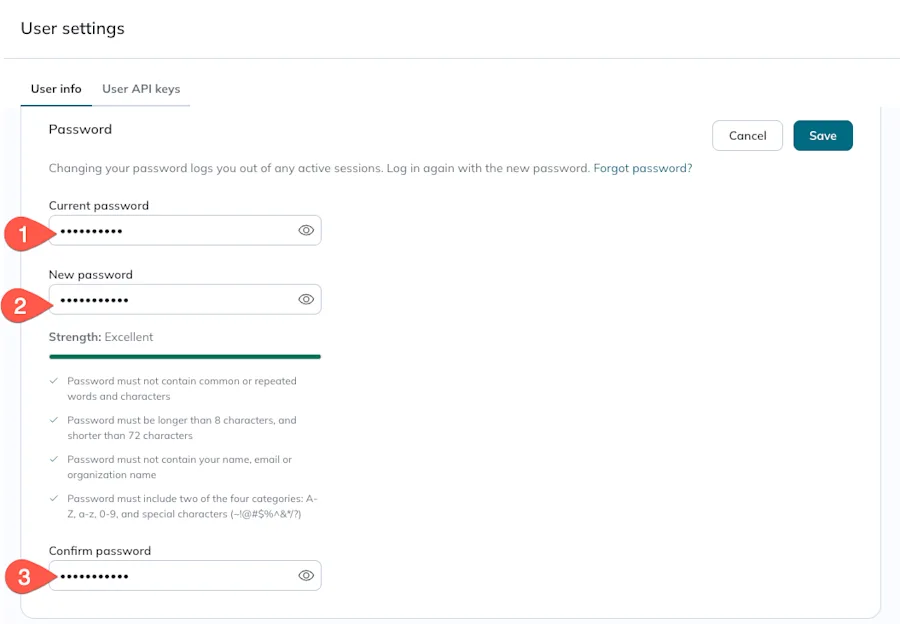
Reset your password
