A translation set is a list of translation mappings between two value sets. This is helpful if your connection sends messages with different codes or values than your organization uses. Differences in code sets (or Redox value sets) might confuse or complicate ingesting data on your side.
Instead of wasting time detangling codes, you can use a translation set to define how two value sets should map to each other. You can use translation sets to:
- Save time: Automatically translate codes for smooth data exchange instead of manually tweaking data.
- Get relevant data: Make sure data is delivered in a code set that’s pertinent to your context and system.
A value set is a list of values that should be translated during the process of data exchange. A value set could be a common code set like LOINC, SNOMED, or any other you know. It could also be a custom code set that your organization uses.
You must define a value set for each system’s code set. This means you should have two value sets to make up one translation set. Essentially, there should be a value set for each code set you want to translate to or from for each system.
A translation set is a list of individual translations between two value sets. A translation maps either:
- one value to one valueExample: WISCONSIN to WI
- multiple values to one valueExample: WISCO or WI to WISCONSIN
You can either build or import translations when creating or editing a translation set in the dashboard.
After you link a translation set, we run our magic in the background so that you both send and receive data in the expected format.


- All environment users can view translation sets. However, a user must be assigned to an engineer or a support role to manage translation sets. Learn about user roles.
- You must have already defined two value sets either in the Redox dashboard or in a CSV file (must have at least 25 defined values) to create a translation set. Learn how to create value sets.
- Log in to the Redox dashboard.
- From the navigation menu, click the Operations drop-down.
- The Operations options expand. Click the Translations option.
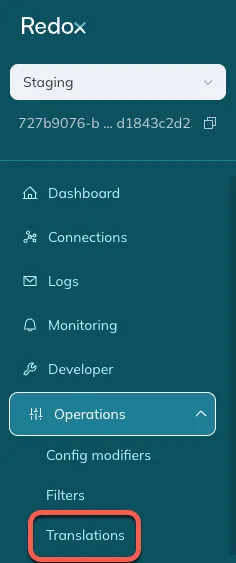
Translations in the side nav - By default, the Value sets tab opens. Click the Translation sets tab.
- Any existing translation sets in the environment display. Search for or use the filters to narrow down the list of displayed translation sets. Or, click the subscription link to expand a translation set row to view link details.
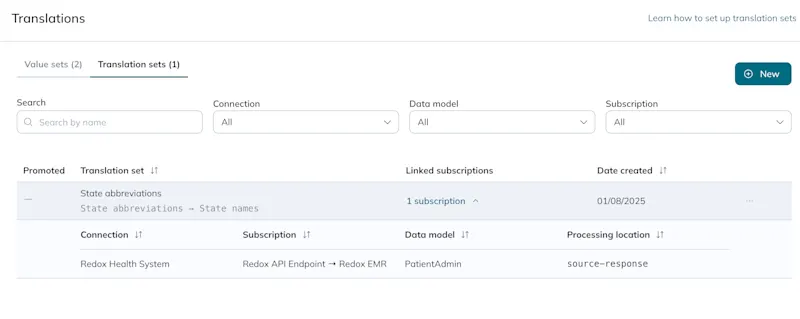
View translation sets and links - To review a specific translation set, click anywhere its row to open the Details page.
- Follow the steps to view translation sets.
- Click the New button.
- The create form opens. Enter a unique human-friendly name up to 500 characters (names must be unique within the environment).
- You can either build translations from existing value sets in the Redox dashboard or import value sets with translations defined in a CSV file.
- To build, click the Build translations from existing value sets option.
- In the From drop-down on the left, select the value set you want to translate FROM.
- In the To drop-down on the right, select the value set you want to translate TO.
- To import, click the Import new value sets with translations in a CSV file option. Choose this option if you have lots of values and would prefer to handle mapping translations in a CSV file. Imported value sets are only temporarily created in the dashboard until you finish creating the translation set.
- Instructions display for the import. Click the Upload a CSV file button.CSV file requirements
- A modal opens. Select the CSV file you want to import.CSV file errors
- The file passes validation.
- The default directionality and the selected value sets populate. Learn more about directionality. Next, build your translations. From the drop-down fields, select the values to map to each other.
- Click the Add button to add a new row for as many translations as you need (up to 7,500 translations)."In use" values and directionality
- Translation sets are case sensitive by default. If your data won’t be consistently cased, toggle the Case sensitive option to OFF. This is helpful to avoid creating unique translation sets just for differing cases. If you turn off case sensitivity, any value that matches a FROM value, regardless of casing, will be translated to the indicated TO value.Disabled case sensitive option
- Review the table with your translations and make any changes. You can edit by clicking the drop-down fields in the rows or click the Delete icon to delete translations.
- Click the Create set button.

Create translation set - Follow the instructions to link the translation set to apply these translations to your traffic.
To apply translations, you have to link the translation set to the relevant log processing stage and field path.
- Follow the instructions to view existing translation sets.
- Find the translation set you want to link and click anywhere in its row.
- The Details page opens. Under the Translation set links section, click the Link button.
- The create form opens with the translation set name displayed.
- Under Set directionality, select the radio button to specify the direction the translation should be applied. If you want a translation set to be applied in both directions, you must create two separate links (one for each direction). However, you can only create one link at a time. Learn more about directionality.Uni-directional sets
- Select the connected organization with the subscription you want to link the translation to.
- Click the Subscription drop-down.
- A modal opens with the subscriptions in your environment. Use the Search field or the Connection drop-down to narrow down the available options. Or, use the page options at the bottom of the modal to navigate through the pages.
- Select the radio button of the subscription you want to link a translation set to, then click the Select Subscription button.
- The Data model field populates with the subscription's data model. This can be changed if you're using composable processors and expect the data model to change during processing. Learn more about composable processors.
- Select the appropriate log processing location to link the translation set to. Learn more about log processing stages.Links and processing stages

Create a translation set link - Select the field path you want to link the translation set to. A field path is like an “address” for a particular field and value in the data payload. You can link a translation set to one or more field paths. This means you can use one translation set to update multiple values in a data payload.
- A modal opens for testing the field path and value. You can change your selection by clicking the Field Path drop-down again to view a list of fields.
- Once you have the correct path, use the validation tools to test your choice. Or, if you don’t want to test, you can skip and proceed to the next step.
- Find a log payload for the subscription you want to translate. Learn more about searching for logs.
- Copy and paste the log payload into the Test Message section.
- On the right side of the modal, under Field Values, the value that displays is the one found at the field path you selected.No Redox validation
- Click the Select button on the bottom right of the modal.

Select and test a field path
- Click the Add field path to repeat the process for as many field paths as you need. This is what allows a translation set to alter multiple values in one data payload at a time.
- Click the Create button.
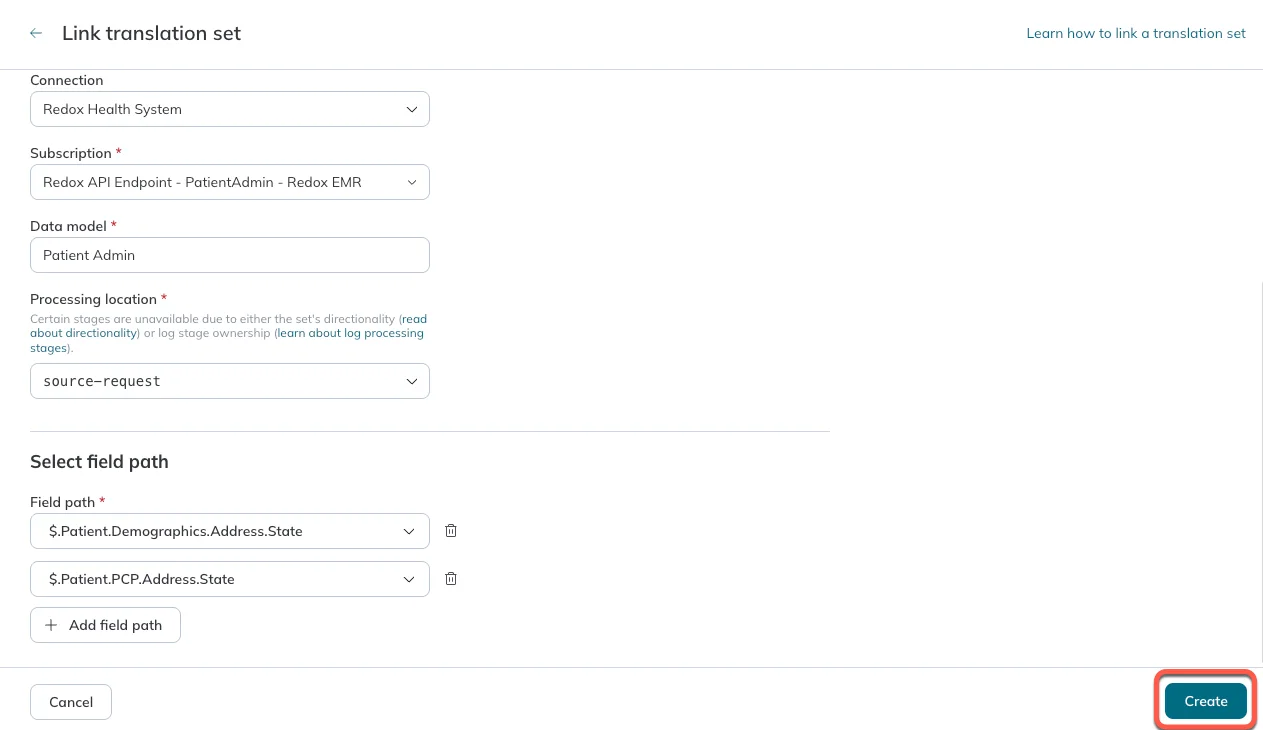
Click the Create button - The new link appears in the table and automatically applies to the linked subscription’s traffic.Operation details in logs
- Repeat this process for as many links as you need.
- Follow the steps to view translation sets.
- Find the translation set you want to edit and click anywhere in its row.
- Click the Edit button.Editing promoted assets
- The edit form opens. Add, edit, or delete translations in the set.Edit values in a translationChanging directionalityInactive value sets
- Click the Save button.

Edit a translation set
- Follow the steps to view translation sets.
- Find the translation set you want to delete. Click the three-dots icon, then the Delete option.
- A confirmation modal opens. Click the Delete button.

Delete a translation set
- Follow the steps to view translation sets.
- Find the translation set with the link you want to delete and click anywhere in its row.
- The Details page opens. Under the Translation set links section, find the link you want to edit or delete. Click the three-dots icon.
- From the drop-down menu, click the relevant option.
- Select the Edit option.
- The edit form opens. Edit any of the details, then click the Save button.

Edit a translation set link
- Select the Delete option.
- A confirmation modal opens. Click the Delete button.Deleting a translation set link

Delete a translation set link
During implementation, you can build and test a translation set in a staging environment. Once you’re confident it works, you can promote it to production.
When you promote, the value set is automatically promoted, too. Value sets can’t be promoted on their own.
Promoting an asset saves time and avoids introducing errors by having to rebuild it in a different environment. Learn more about promoting assets.
- Follow the steps to view translation sets.
- Make sure you’re in a Staging environment.
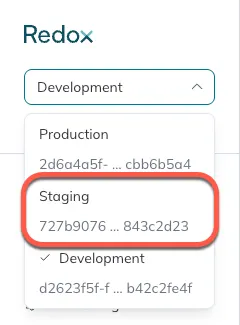
Select the staging environment - Find the translation set you want to promote and click anywhere in its row.
- The Details page opens. Click the Promote button.
- A confirmation modal opens to acknowledge that you’re exiting staging and proceeding to production. Click the Proceed button. Otherwise, click the Cancel button to discard the promotion.

Promote a translation set to production - The Details page in the production environment opens.
- To make any changes to the translation set, click the Go to Staging button.
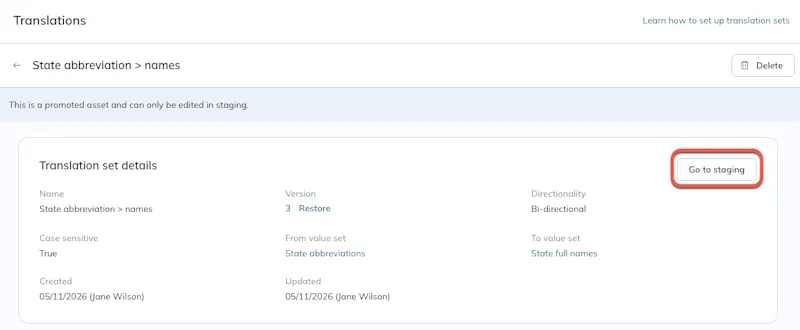
Go to staging to edit - A confirmation modal opens to acknowledge that you want to switch environments. Click the Proceed button to continue.
- The Details page opens in the staging environment. Follow the instructions to edit a translation set.
- Once changes are successfully made, re-promote the translation set to keep the assets in sync across environments.
- Next, create subscription link(s) to apply the translation set in your production environment.
Every time you edit a translation set, you create a new version of the asset. You can restore a version of a translation set that’s not currently in use. This may be helpful when troubleshooting to see where an error might have been introduced or to resolve an error by using a version that worked previously.
- Follow the steps for viewing translation sets.
- Find the translation set you want to restore and click anywhere in its row.
- The Details page opens. Click the Restore button.
- A modal opens. From the drop-down, select a version to restore.Restore notes
- The diff view shows what’s different between the current and selected version. Review the differences, then click the Restore button.Versions after editing

Restore a translation set - For promoted assets, restoring a version only applies to the current environment. If you restore a version in staging, you might need to re-promote the asset if you want to apply it to production as well.What happens to value sets?
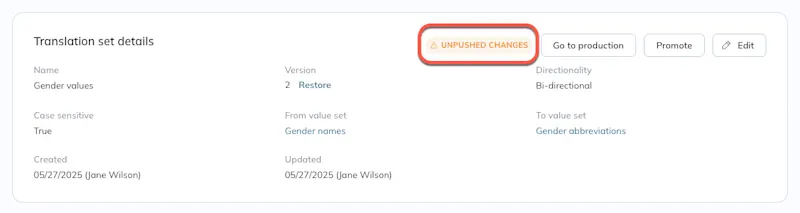
Unpushed changes 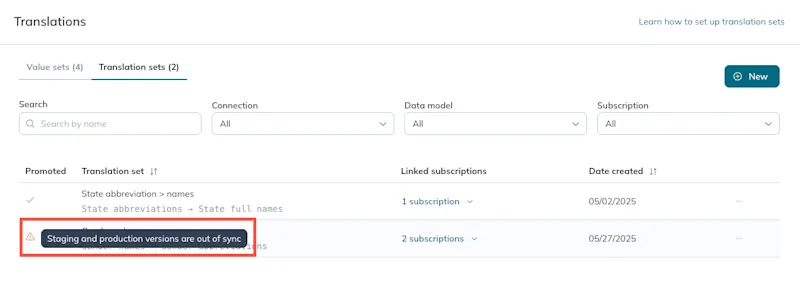
Out of sync versions
A translation set is bi-directional by default. This means the values can be translated in either direction: FROM-TO or TO-FROM. When you map more than one value to the same value, the translation set becomes uni-directional. A uni-directional translation set can only be linked going FROM - TO.
A translation set can be either bi-directional, or uni-directional.
- Bi-directional (default): A translation can potentially be linked twice, meaning the translation could happen in both directions. For example, a translation that maps between Value A and Value B means that the values can be translated on both sides of the exchange, back and forth.
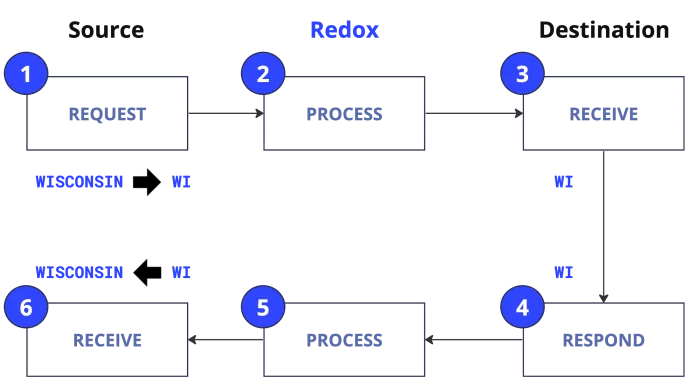
Bi-directional translation set linked to two log processing stages - Uni-directional: A translation can only be linked once going in one direction. This works for translating one value to one or multiple values to one. For example, if you have a translation from Value to Value B, the translation happens only once and won’t be translated back. Specifically, Value B wouldn’t ever be translated to Value A. You could also have a translation from Value A or Value C to Value B.
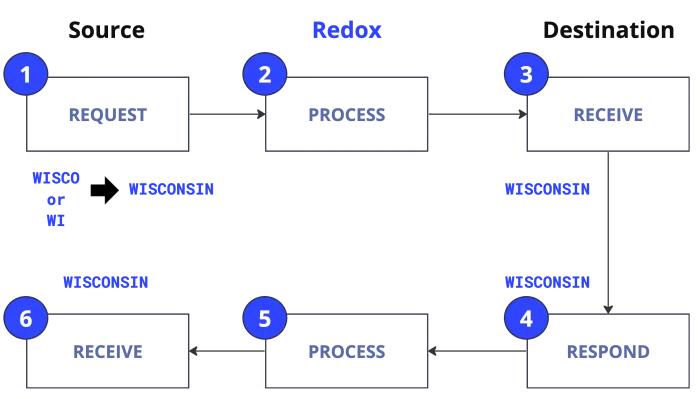
Uni-directional translation set linked to one log processing stage
A translation set automatically changes from the default bi-directional option to uni-directional if you add translations for multiple values to the same value. This can only happen if you don’t have any other bi-directional links, however. To change a uni-directional set back to bi-directional, remove all translations with mappings to the same value.