Create alert rules and links

Last updated: Apr 13, 2026
HEALTH TECH VENDOR
HCO
IMPLEMENTATION

The Monitoring page in the Redox dashboard allows you to view and manage your traffic alert rules. Learn about monitoring data exchange health.

Traffic alert rules vs. Redox system alerts

Remember that traffic alert rules are unique rules you create to proactively monitor your integration health.

System alerts also monitor integration health, but they’re Redox-managed and Redox-resolved. Learn about Redox system alerts.

Prerequisites

  • All environment users can view traffic alert rules. However, a user must be assigned to an engineer or a support role to manage alert rules. Learn about user roles.
  • You must have a paid Redox account to use alert rules. If you have a free Redox account, alert rules won’t be visible in the dashboard or available via API.

Overview

Review the types of alert rules and the purpose of links before you start creating.

Types of alert rules

There are different traffic alert rule types that watch for different scenarios in your data exchange. You can create one or more types based on your unique needs.

You must link an alert rule to a subscription to actively watch for the rule’s defined conditions. If the conditions are met, you receive a notification. That way, you can preemptively monitor the health of your subscriptions.

An alert rule can be linked to multiple subscriptions. You can pause or delete a link at any time.


If an alert rule isn’t linked, it’s not actively monitoring anything. You can see if an alert rule is unlinked on the Monitoring > Alert rules tab of the dashboard.


The unlinked status appears to the right of a traffic alert rule's name.
Unlinked alert rule
  1. Log in to the Redox dashboard.
  2. From the navigation menu, click the Monitoring page.


  3. By default, the Alert rules tab opens and displays any configured alert rules with their latest status (statuses won’t display for unlinked alerts). If linked to multiple subscriptions, the status is a global one.
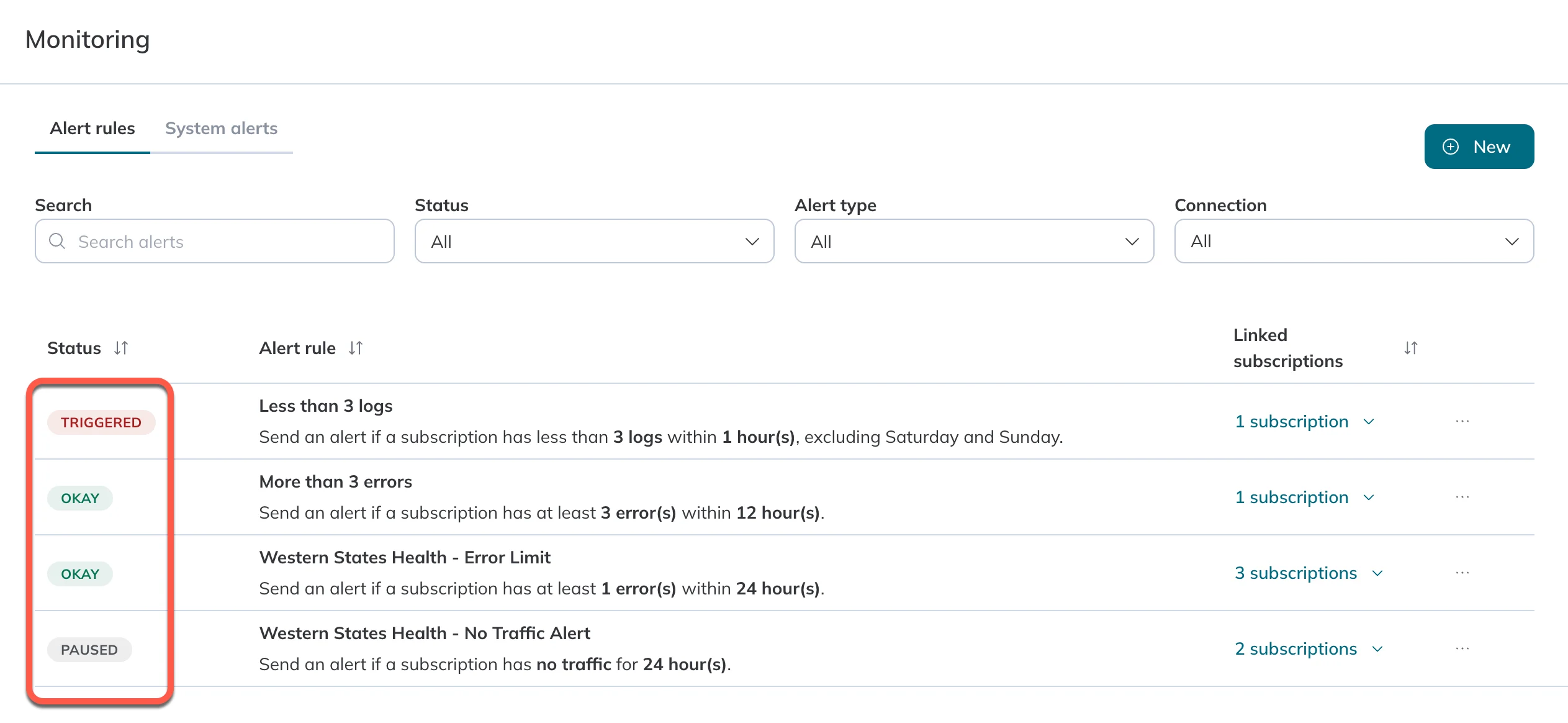
    An alert rule's global status appears on the righthand side.
    Global statuses of linked alert rules
    Available environment types and connections

    If you don’t see a list of alert rules or a Create rule button:

    • Make sure you’re not in a development environment. Alert rules are only available in staging or production environments.
      A warning prompts you to switch to a production or staging environment since alert rules aren’t available in dev environments.
    • Check if you have any connections configured for the staging or production environment. If not, request a new connection for the environment first.
      A warning informs you that you can't create alert rules until there's at least one connection configured for this environment.

  4. Search for or use the filters to narrow down the list of displayed alert rules.
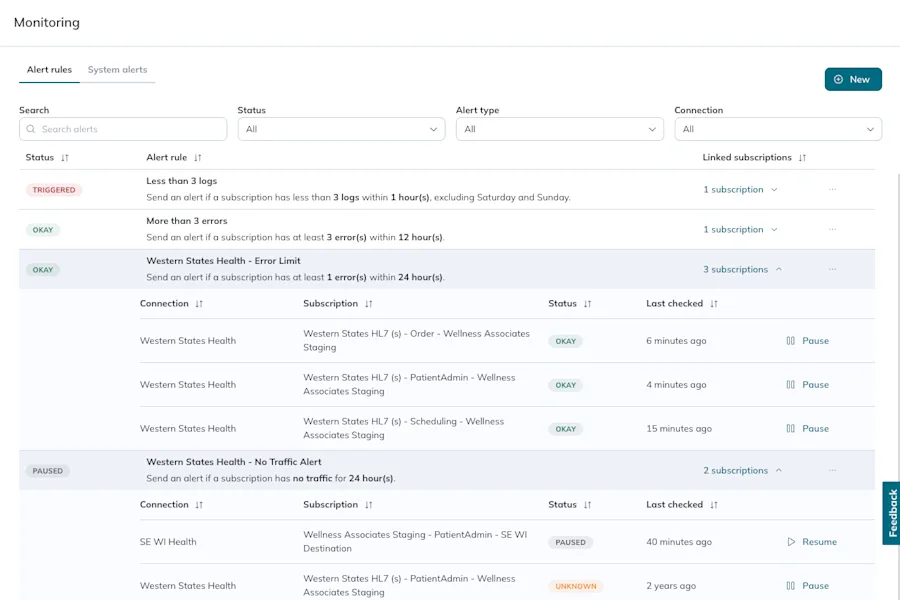

  5. Click the drop-down arrow next to an alert rule to view all of its links. Each link includes the subscription information and the alert rule’s status for that subscription.
    The expanded view of an alert rule shows all its subscription links and related statuses.
    Expanded details of alert rules
    Alert statuses

    Individual statuses display for each alert rule link:

    • Okay: Traffic in the subscription hasnt met the conditions defined by the alert rule. This means the alert rule hasn’t ever been triggered or was resolved after being triggered previously.
    • Triggered: Traffic in the subscription has met the conditions defined by the alert rule. An alert notification has been sent to the designated users, unless it was triggered during an ignored day.
    • Unknown: The subscription isn’t being actively monitored. This can happen if the alert rule was recently created and hasn’t run yet.
    • Paused: The subscription isn’t being actively monitored because a user in your Redox organization has paused the alert rule. Only monitoring is paused, not actual traffic flow of the subscription.

    Individual link statuses are evaluated to create a global status for the alert rule. If all links have the same status, the global status matches.

    • Okay: No links have triggered alerts.
    • Triggered - All: All links have triggered alerts.
    • Triggered - Partial: The links have different statuses, with at least one link being Triggered.
    • Paused: All links have a paused status.
    • Unknown: All links have an unknown status or a combination of Unknown and Paused.

  6. To manage alert rule links and edit alert details, click the alert name to open its Settings page.

Create an alert rule

You can only create one alert rule at a time.

  1. Follow the instructions to view existing alert rules.
  2. On the Alert rules tab, click the Create rule button.
  3. The Create an alert rule page opens. In the Alert name field, enter a human-friendly name for the alert. This name displays on the Alert rules tab, so choose a descriptive enough name to easily identify the alert rule.
    A user enters a name for the new alert rule.
    Create a new alert rule
  4. In the Alert type drop-down field, select one of these options:
    • No traffic
    • Low traffic
    • Error threshold
    • Retry threshold
      Multiple alert rules for a subscription

      It’s possible to create multiple alert rules of the same type for a given subscription. For example, you could link two different No traffic alert rules to one subscription. However, you’d then receive multiple notifications for the same type of issue at potentially different times.

  5. If you selected No traffic, Low traffic, or Error threshold, select the time interval in the Within drop-down field. This is how often Redox should check for the alert rule conditions. (Note: Retry threshold alerts uses a static lookback, so this field won't be selectable.)
  6. For Low traffic, Error threshold, or Retry threshold alert rules, use the up and down arrows to choose the allowable number of logs or errors before an alert rule is triggered.

    A user selects the type, time interval, and allowable number of logs for a new low traffic rule.
    Select type and time interval
  7. (Optional) Select any days of the week or holidays you don’t want to receive notifications for triggered alerts.
    Monitoring doesn’t stop on skipped days

    Monitoring doesn’t ever stop—only notifications stop on skipped days. Any triggered alerts still display in the dashboard no matter what.

    Let’s say you select Saturday and Sunday as your skipped days. If an alert is triggered on Saturday morning, you won’t get a notification about it, but it will appear in the dashboard. On Monday, you might get a notification when the triggered alert resolves.

    Also keep in mind that you might not find out about a triggered alert if it’s both triggered and resolved on a skipped day, unless you happen to check the dashboard while it’s active.

    Multi-region holiday lists

    The holiday list changes depending on the region of the currently selected Redox organization. If you have a multi-region organization, you’ll see holiday lists for both the U.S. and Canada.

    1. Next, select a time zone for the skipped days.
      Default time zone for different subscriptions

      The default time zone is your connection’s time zone (i.e., in their Redox organization settings). If your connection doesn’t specify a time zone, U.S. Central time serves as the default instead.

      If an alert rule is linked to subscriptions with different time zones, notifications are triggered based on the respective time zone of each subscription.

      For example, you might have an alert rule that’s linked to subscriptions in Central and Pacific time, but you chose to skip notifications on Saturday. If the alert is triggered at 12:30 AM Eastern on a Saturday, you’ll still receive an alert notification for both subscriptions because it’s only 11:30 PM Central or 9:30 PM Pacific on a Friday. However, if another alert rule is triggered for both subscriptions just an hour later, you’d only get a notification for the second subscription.

      A user chooses to skip notifications on Saturday, Sunday, and holidays and sets the time zone to UTC.
      Skip notifications on weekends or holidays
  8. In the Notifications section, enter the email address(es) that should receive a notification when the conditions of the alert rule are met. Use commas to separate email addresses if the alert notification should go to more than one address.
    A user types a comma-separated list of email addresses to send alert notifications to.
    Enter email address(es) for notifications
  9. Click the Create Rule button to save the settings. Alternatively, click the Cancel button to discard the alert rule settings.
  10. A modal opens with a reminder to link the alert rule to activate it. Click the Confirm button.

  11. The Settings page opens with the new alert rule’s details. To start monitoring rule conditions, link an alert rule to one or more subscriptions.
    A user saves the alert rule settings and confirms that linking is still required.
    Create an alert rule

Edit an alert rule

  1. Review any alert rules in the environment on the Alert rules tab. Find the one you want to edit. Click the alert rule name or View details button.
  2. The Settings page opens with the alert rule’s details and links. Click the Edit button.
    Edit an alert rule
    Edit an alert rule
  3. The Edit an alert rule page opens. Edit the alert name, settings, or notifications.
  4. Once you’re finished, click the Save edits button.
    Save edits
    Save edits

Delete an alert rule

  1. Follow the instructions to view existing alert rules.
  2. Find the one you want to delete. Click the alert rule name or View details button.
  3. The Settings page opens. Scroll to the bottom of the page, then click the Delete button. Deleting an alert rule also deletes any associated subscription links.
    Deleting alert rule vs. deleting links

    This is different from the delete options for each alert rule link, which you can find in the table of links.

  4. A confirmation modal appears. Click the Delete button to proceed or the Cancel button to keep the alert rule.
    A user selects and deletes a configured alert rule.
    Delete an alert rule

Once you’ve created an alert rule, you must link it to one or more subscriptions to begin monitoring for the rule’s conditions.

Linking the same alert twice

You can link one alert rule to multiple subscriptions. You can also have one subscription with multiple links. However, you can’t link the same alert rule to the same subscription more than once.

  1. Follow the instructions to view existing alert rules.
  2. Find the one you want to link. Click the alert rule name or View details button.
  3. The Settings page opens with the alert rule’s details and links. Under the Links section, select the relevant connection from the drop-down menu.
    A user opens the alert rule's settings page then selects a connection to link to.
    Select a connection for an alert rule link
  4. Click the Select subscription link.
  5. A modal opens with the available subscriptions for the connection you selected. Use the Search field or the Connection drop-down to narrow down the available options. If needed, use the page options at the bottom of the modal to navigate through the pages. Then select the radio button of the subscription you want to link an alert rule to.
  6. Click the Select subscription button.
  7. Click the Link rule button to finish linking the alert rule to the subscription.

    A user selects a subscription to link the alert rule to.
    Select a subscription to link
  8. The new link appears in the table. Redox begins evaluating for the alert rule conditions every 15 minutes (Error threshold or Retry threshold alert rules) or every 30 minutes (No traffic or Low traffic alert rules).
  9. Repeat these steps to link the alert rule to as many other subscriptions as needed.
  10. When the alert rule conditions are met, we send a notification to the specified list of email addresses. The notification includes the information and related links for the triggered alert rule.
    Redox email address

    The alert notification is sent from alerts@redoxengine.com. Make sure to allow-list that email address as a sender, or check your spam folder if the alert notification doesn't show up in your inbox.

    An example of an email notification for a triggered alert rule.
    Triggered alert email notification
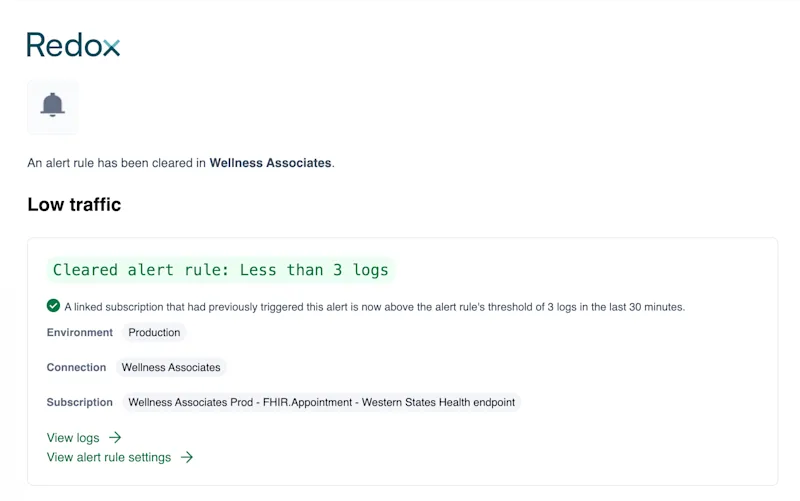
    The specified users also receive a notification when the triggered condition resolves.
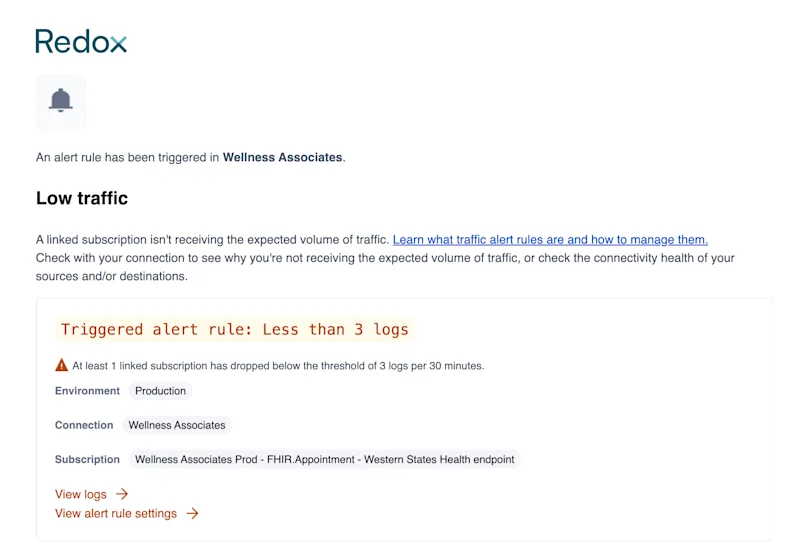
    An example of an email notification for a resolved alert rule.
    Resolved alert email notification

Pausing a link temporarily halts subscription monitoring. The alert rule will still be linked to the subscription, but Redox won’t watch for any of the specified conditions. Pausing only affects monitoring, not actual subscription traffic.

Deleting a link removes the subscription from the alert rule, meaning the subscription won’t be monitored anymore. Deleting the link doesn’t delete the alert rule itself, though.

  1. Follow the instructions to view existing alert rules.
  2. Find the one with the link to modify. Click the drop-down arrow to expand the details.
  3. Click the Pause or Delete button next to the relevant subscription link.
    A user pauses a link for an alert rule from the Alert Rules tab.
    Option 1: Pause an alert rule link
    If you click Delete, a confirmation modal opens. Click the Delete button to confirm and successfully delete the alert rule link.
    A user deletes a link for an alert rule from the Alert Rules tab.
    Option 1: Delete an alert rule link
  4. Alternatively, you can click the alert rule name to open its Settings page. Under the Links section, you can pause or delete subscriptions.
    A user pauses a link for an alert rule from its Settings page.
    Option 2: Pause an alert rule link
    A user deletes a link for an alert rule from its Settings page.
    Option 2: Delete an alert rule link
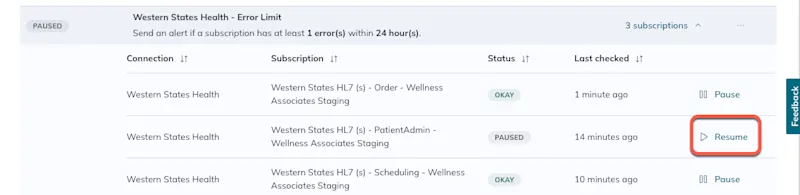
  5. To resume monitoring, click the Resume button.
    The Resume option appears on the righthand side of each paused subscription link.
    Resume alert rule monitoring
Platform API endpoints

This article describes how to manage traffic alert rules in the Redox dashboard. To manage alert rules via API, use these Redox Platform API endpoints instead:

FHIR® is a registered trademark of Health Level Seven International (HL7) and is used with the permission of HL7. Use of this trademark does not constitute an endorsement of products/services by HL7®.