
Workflow viewer is an interactive, diagrammatic visual of how your composable processors handles your data. More specifically, you get insight into the complex logic in play that gets your data from one system to another. Learn more about processors.
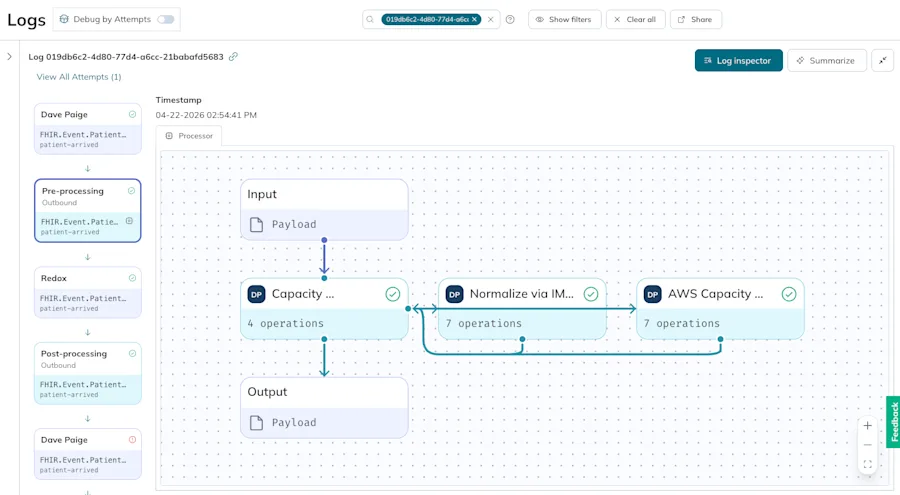
You can find workflow viewer on the Logs page of the Redox dashboard in these two places:

- Log details: Selecting a specific log opens the log details. Click a log stage where a processor is linked. On the Processor tab of log details, workflow viewer appears with an interactive diagram of exactly how the processor executed in a specific, historical log attempt.What’s not available in log details
- Log inspector: Click the Log inspector button to open the testing tool for troubleshooting. Click any of the Processor operations to open workflow viewer with an interactive diagram of how a specific version of your processor might run. When you run log inspector, it runs the processor that was active when the log ran.What’s not available in log inspector
Workflow viewer renders processes as interactive diagrams, allowing you to see how the data is transformed as it’s processed.
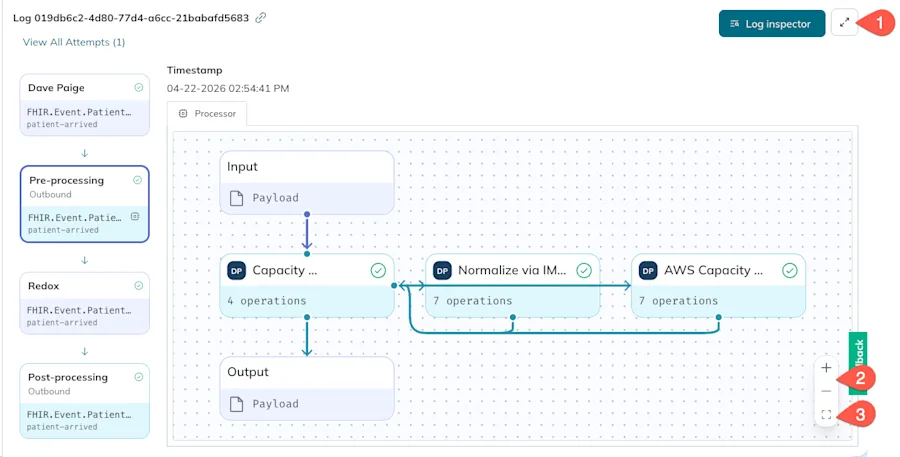

- To focus in on workflow viewer, click the Expand icon to hide log filters and the log list.
- Use mouse-wheel scrolling or the plus (+) and minus (-) icons for zooming and click-and-drag for panning.
- To reset your view, click the Fit to page icon.
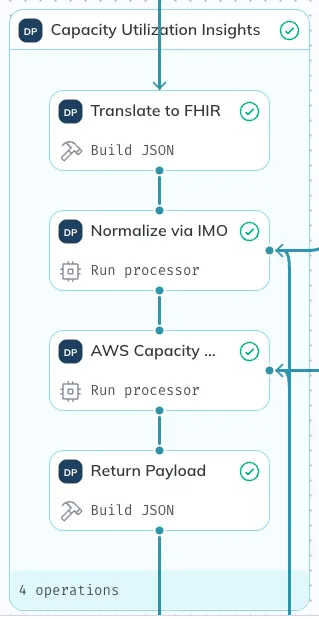
The header of any processor node displays the name of the processor when it was created. An organization avatar on the headers shows which organization owns the processor.
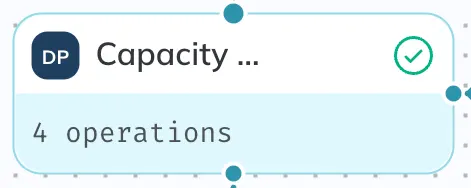
The header of any operation node displays the name of the operation when it was created. The node footer displays the operation type. Review operation types and definitions.
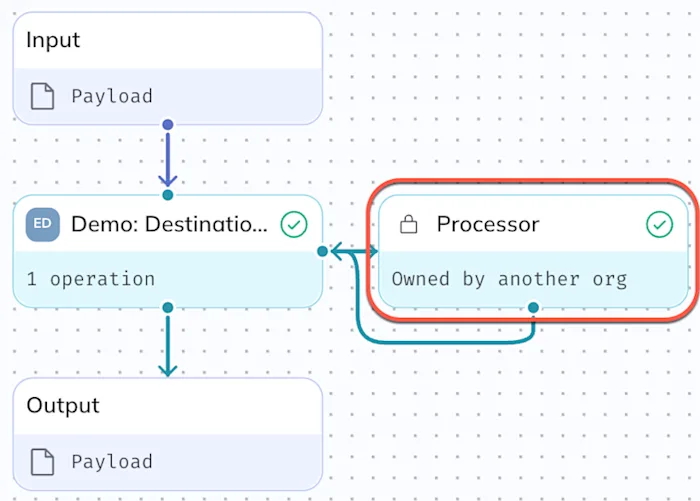
If your organization doesn’t own the processor and doesn’t have an access grant to it, a lock icon appears, and the node isn’t expandable.
By default, processors are collapsed. Click the footer of any processor node to expand the processor and view the operations (or sub-processors) inside. Click the top of the processor node or any sub-node to open the details pane with the specific logic. Review operation types and definitions.

Processors with nested processors or operations are rendered with expandable boxes. You can collapse/expand nodes to manage complexity.
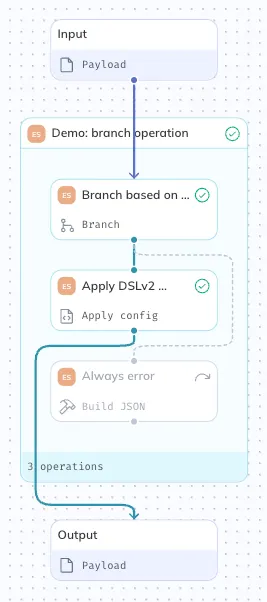
- Lines with arrowheads indicate when data crosses the boundary of a processor or sub-operation.
- Lines without arrowheads indicate internal operation-to-operation flow.
- Dotted lines represent alternate paths a branch operation could’ve taken but didn’t.
Within log inspector, you can visualize the outcome with the colors of the lines between processors and sub-operations.
Green lines indicate a Success outcome.
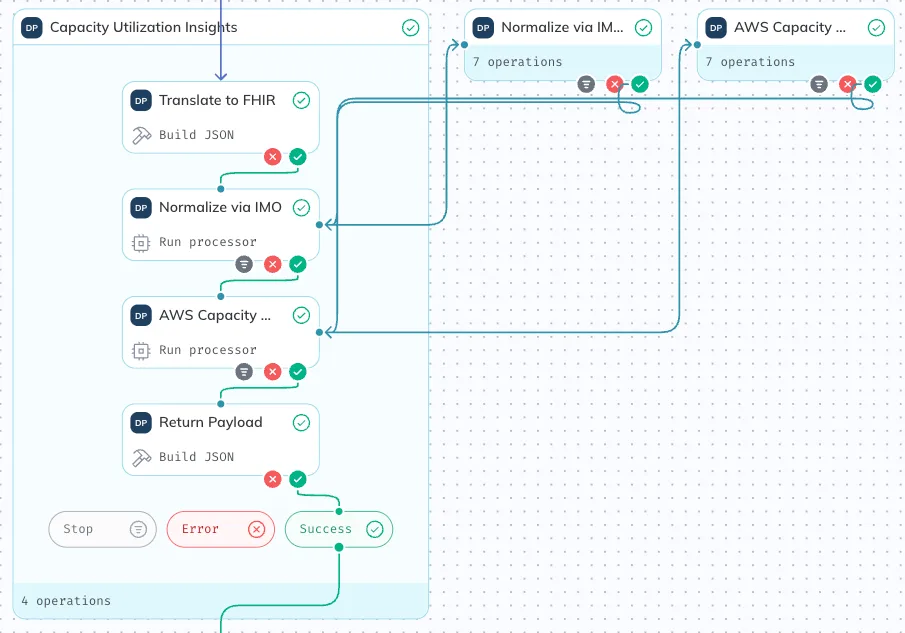
Red lines indicate a Failure outcome.
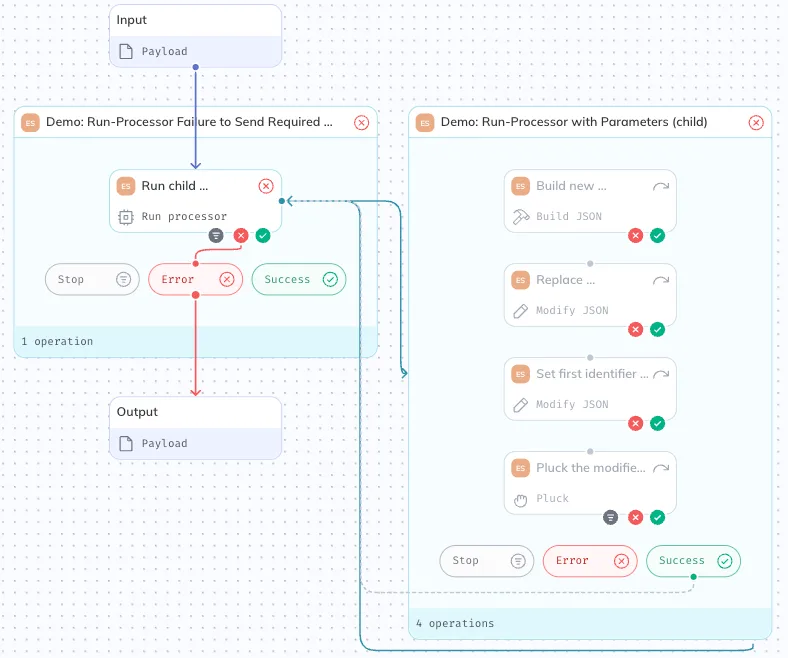
Within log inspector, you can see payload snapshots at the operation level. Click the processor node, then click any operation node to view a snapshot of the data payload at that moment in processing. Payload snapshots aren’t available in log details.
A map collection operation extracts an array from the input payload using a JSONPath selector, then executes a set of operations on each item in the collection. This means a map collection runs for each item in the array. Learn more about map collection operations.
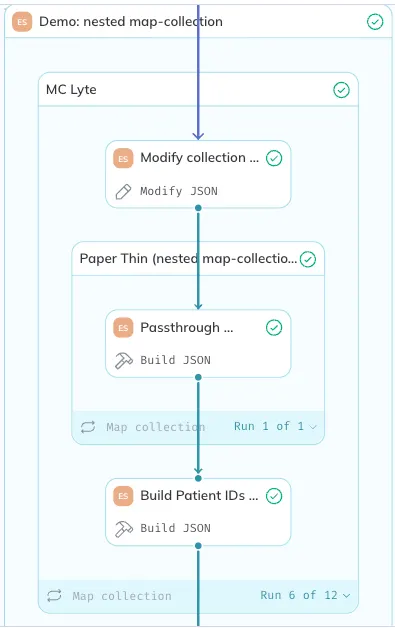
Workflow viewer provides a “Run X of Y” drop-down menu so you can browse through each run. Clicking a specific run allows you to inspect payloads and outcomes for that individual iteration. In log details, you can browse through all the runs. However, in log inspector, you can only browse through the runs of the first 10 defined items in a map collection.

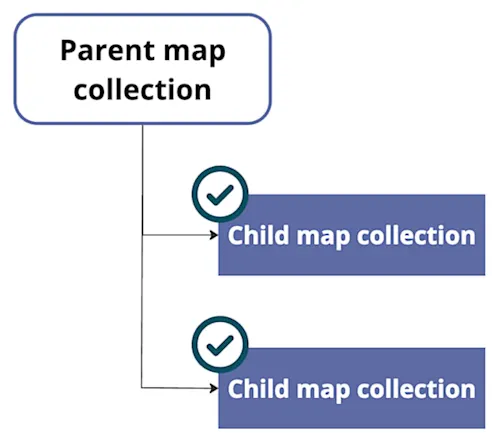
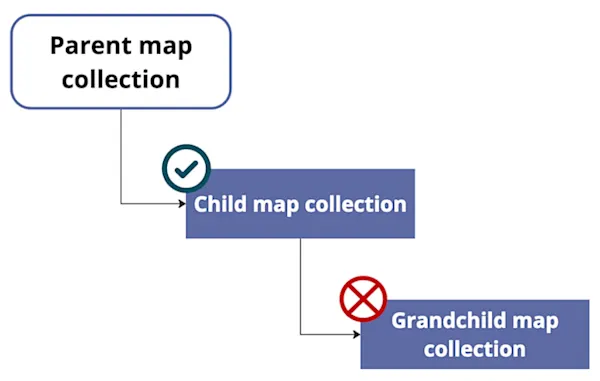
One or more map collections may be nested inside a parent map collection operation. However, the nesting limitation is only one level deep:
Review technical details for workflow viewer below.
- User roles: Visibility into workflow viewer is governed by your existing access control role assignments. All users in an environment can view processor run metadata, but a user must be assigned to a support or engineer role to view processor payloads and parameter values. Learn more about roles.
- Processor grants: If another organization grants you access to a processor they own, your ability to see details depends on the granted visibility level (i.e., none or operations). Learn more about grants.
- Clickable node: If your grant level is set to operations, you can see the processor name and number of operations, as well as where the processor ran. You can also expand the processor node or click the header to open the details pane with the operation details and payloads.
- Lock icon: If your grant level is set to none, you can see the processor name, as well as where the processor ran. However, you can’t see the number of operations (by default it shows 0 operations), and the processor node isn’t expandable. When you click the processor node, the details pane opens with a warning to say you don't have permission to view any operation details or payloads.
- Lock icon plus hidden content: If you share a processor with your connection, but your connection owns a child processor to it, you’ll see where the shared processor (with a run-processor operation type) and child processor ran. However, the child processor node has a lock icon, and you can’t see the processor name or number of operations. You also don’t have access to see its operation details or payloads.
- No processor tab: If a log stage doesn’t contain a composable processor, the Processor tab isn’t available and standard log details display. Learn about log details.
- Multiple tabs in one log stage: If a log stage contains a processor and other data operations (i.e., filters, translation sets, config modifiers), the Processor tab appears with workflow viewer.