
After creating a Redox dashboard account, you have to create a Redox organization record to associate with your account. Learn more about Redox organizations.
- Any user can create a Redox organization and become its owner. But a user must be assigned to an owner role to update the organization profile. Learn about user roles.
- To join an existing organization, an organization owner must invite you. When you receive an email invite, click the link to confirm your email address and join the organization. Learn how to add a user.
- If you want a Redox organization to move from a free account to preproduction, you must be in the Redox onboarding process. Talk to your sales rep with any questions.
- Log in to the dashboard.
- Click your username at the bottom of the navigation menu.
- From the user menu, select the Switch organization option.
- The organizations submenu opens. To create a new organization, click the Add organization button.
- The Add new organization modal opens. Enter an organization name, then click the Create button.
- The organization Overview page opens. When you create an organization, by default you’re assigned to be the organization owner. Learn more about organization roles.
- Next, fill out your organization profile.
We use the details in your organization profile for your company’s listing in our connected solutions. Make sure you keep these details up-to-date. View our connected solutions.
- Log in to the dashboard.
- Click your username at the bottom of the navigation menu.
- From the user menu, select the Organization profile option.
- The Organization info tab opens. Under the Profile section, click the Edit button.
- Edit any of the profile details.
- To upload your company logo, click the icon thumbnail. This will either be an empty icon or a previously loaded logo if you’re editing.
- The file explorer opens. Select the image file with your company logo.
- Click the Save button.
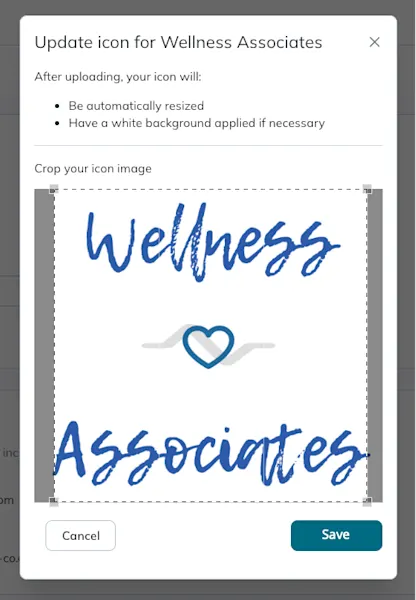
Upload your company logo
- In the Name field, keep or edit the organization name that was chosen when you created the organization.
- The organization ID can’t be edited, since it’s an ID automatically assigned to your organization by Redox, but it can be copied.
- In the Overview field, describe the purpose or mission of your company.
- Click the Save button.
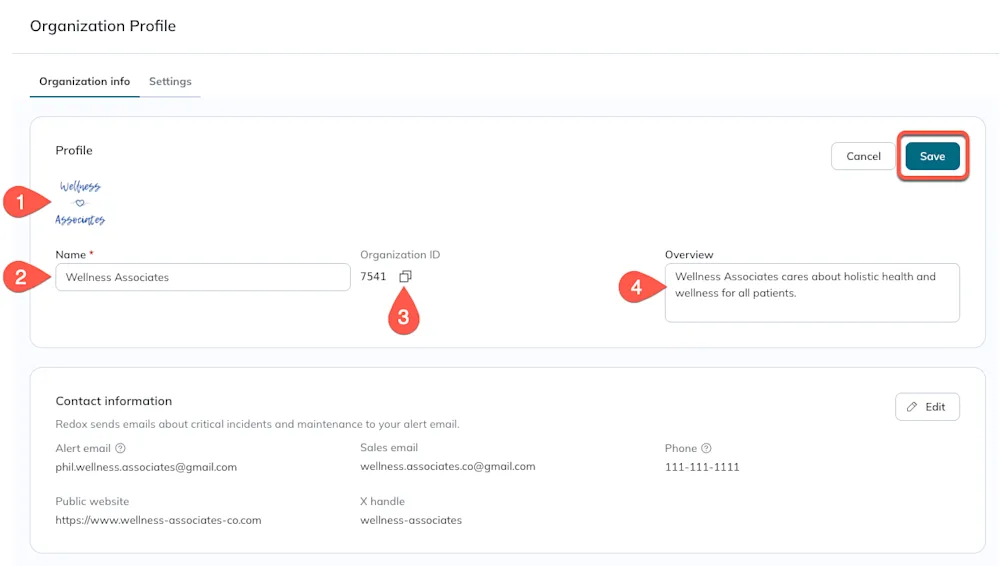
Edit the organization profile - Under the Contact information section, fill out the contact details for your organization:
- Alert email address: Enter the email address Redox should send system alerts to. Learn more about system alerts.
- Sales email: Enter the email address for the point of contact who should receive sales communications.
- Phone: Enter the phone number for the point of contact for Redox to reach out to.
- Public website: Enter your company’s web address.
- X handle: Enter your company’s handle for an X account.
- Click the Save button.
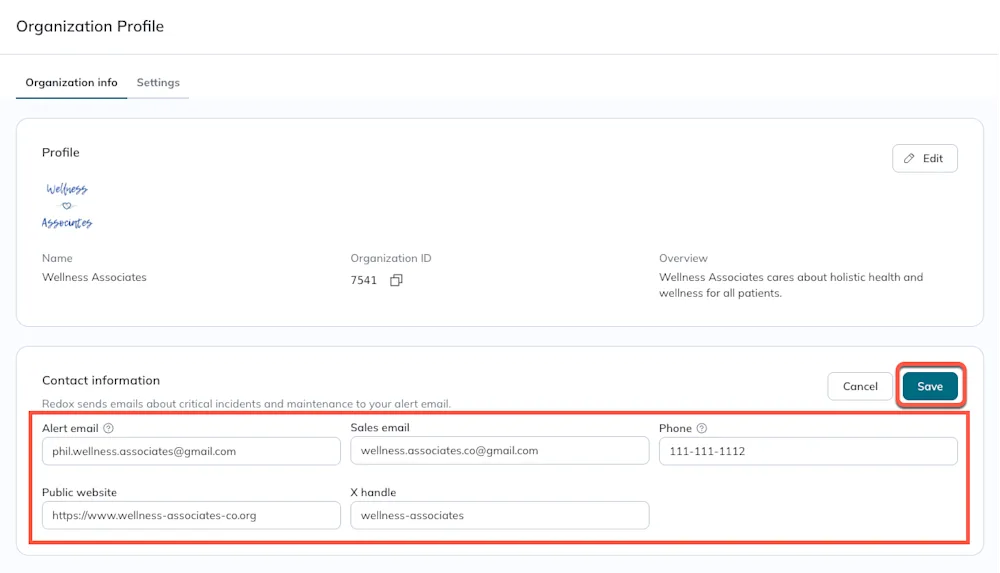
Edit the organization contact information
Next, you might want to start adding users. Learn how to add a user to a Redox organization.