
You can invite a user to join an existing organization in the Redox dashboard. Learn more about Redox organizations and users.
We don’t currently support adding a user via API.
- A user must be assigned to an organization owner or admin role to manage users. Learn more about user roles.
Follow these instructions if you don’t use SSO to log in to your Redox organization.
- Log in to the dashboard.
- Click your username at the bottom of the navigation menu.
- From the user menu, select the Access control option.
- The Access control page opens with three tabs. By default, a list of active organization users appears on the Users tab. Click the Invite user button.Not available for SSO organizations
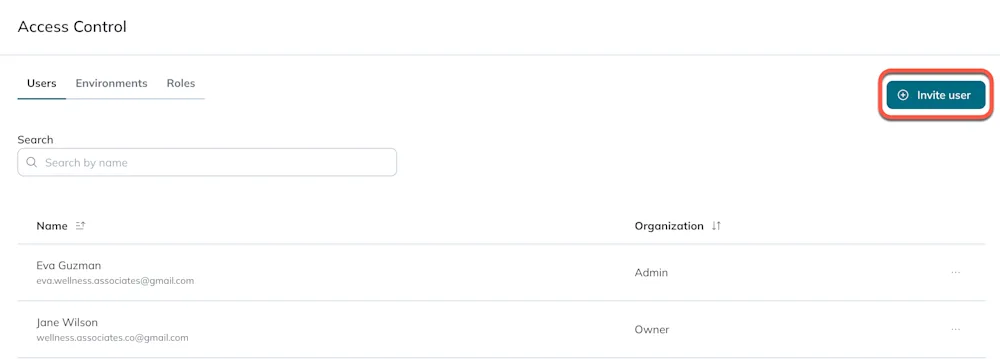
Click the Invite user button - A modal opens. Enter the email address of the user to add to the organization.
- Click the Invite button to send the email invitation. The invited user appears in the Users table with a Pending status.
- The invited user receives an email from Redox with an invitation link. The invited user clicks the Accept button.
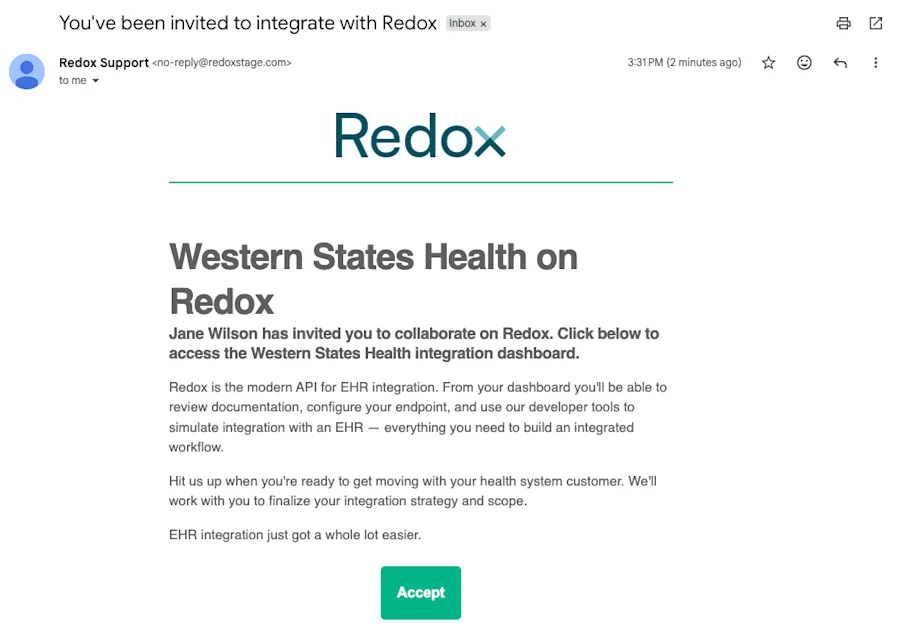
Accept the invitation to join a Redox organization - The dashboard login page opens.
- New Redox users must create a Redox dashboard account. Learn how to create a Redox dashboard account.
- Existing Redox users log in with their Redox account credentials.
- After logging in, a welcome page appears with the name of the organization. Click the Accept invitation button to join the organization.

Accept invitation - A welcome message appears. Click the View your dashboard button to open the Redox organization.
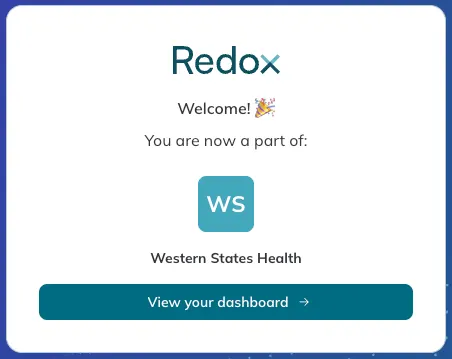
View your dashboard - All users that accept the invitation appear on the Users tab.
Membership limit
For SSO-enabled organizations, you must complete steps in both your identity provider (IdP) and the Redox dashboard. Refer to your identity provider’s docs for managing users in their system.
- Add a user in your IdP.
- The user logs into the Redox dashboard. This triggers the membership sync from the IdP to Redox.
- The user appears in the Redox organization. Assign or change user role.