A value set is a list of values that should be translated during data processing. This could be a common code set (e.g., LOINC, SNOMED) or a custom code set your organization uses.
A translation set is made of two value sets. You must create a value set for each code set you’re translating to and from between systems. Read more about translation sets.
Platform API endpoints
- All environment users can view value sets. However, a user must be assigned to an engineer or a support role to create or edit value sets. Learn about user roles.
- To delete a value set, you must first remove it from any active translation sets.
- Limitation: A value set can contain up to 5,000 values.
- Versioning: Editing a value set creates a new version but doesn’t automatically update an associated translation set. You must update the value mappings in the translation set to advance the version.
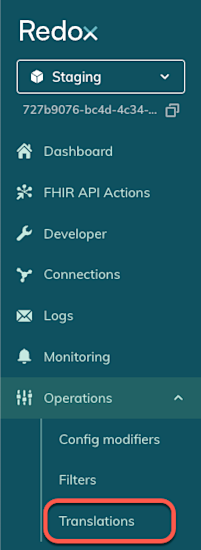
- Log in to the Redox dashboard.
- From the side nav menu, click the Operations drop-down.
- The Operations options expand. Click the Translations option.

Translations in the side nav - By default, the Value sets tab opens. Review any existing value sets or create a new one.

- Follow the instructions to view existing value sets.
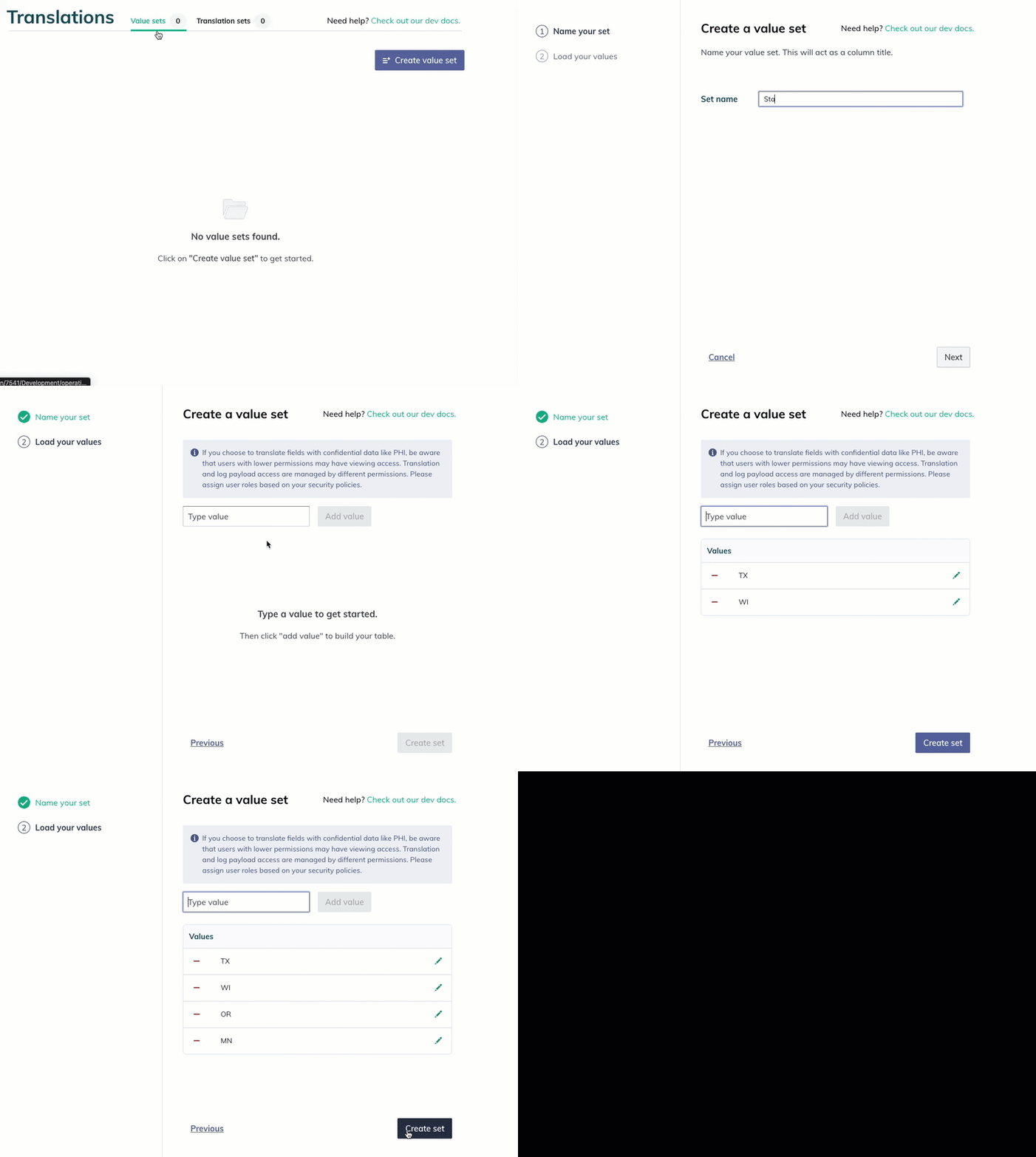
- Click the Create value set button.
- The value set wizard opens. Enter a human-friendly name for the value set, then click the Next button. This name appears on the Value Sets tab and in the translation set wizard when selecting value sets.
- In the next tab, build your value set.
- Type a value in the field.
- Click the Add value button (or press Enter on your keyboard).
- Repeat for each value.Importing values (workaround)Value set limits
- The new value(s) appear in the table. If needed, click the pencil icon to edit a value.
- When you’re finished, click the Create set button.

Create a value set - The value set’s Details page opens with the table of values. View recent activity, including who last updated the set, and what translation set(s) it’s applied to.
- If needed, repeat these steps to create another value set to map to. Remember, you must have two value sets to create one translation set.

- Follow the instructions to view existing value sets.
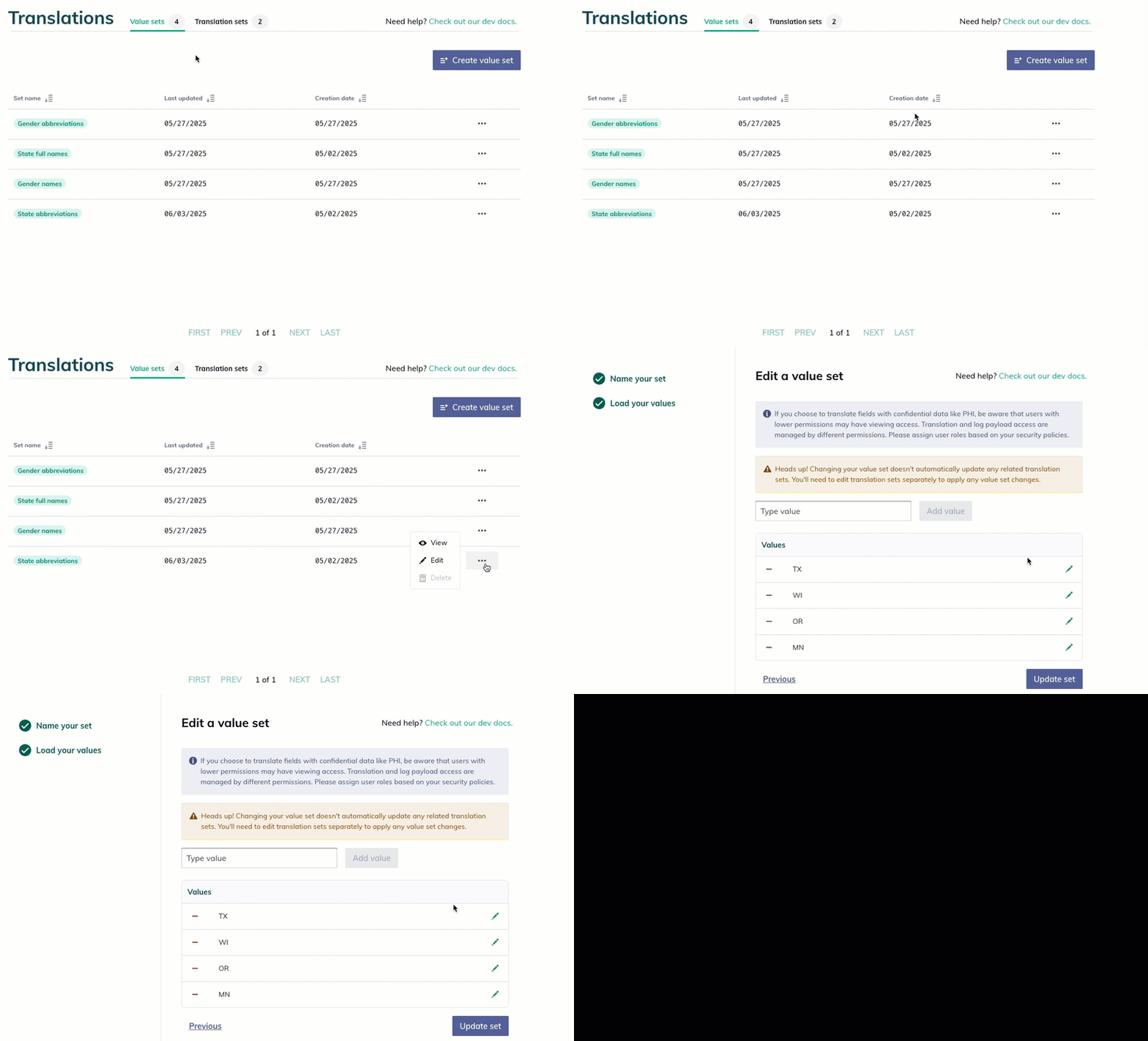
- Find the value set you want to edit. Click the three-dots icon.
- On the drop-down menu, click the Edit button.

Click the Edit button - The value set wizard opens to the Edit a value set page. Click the Previous button to edit the value set name or manage the existing values.
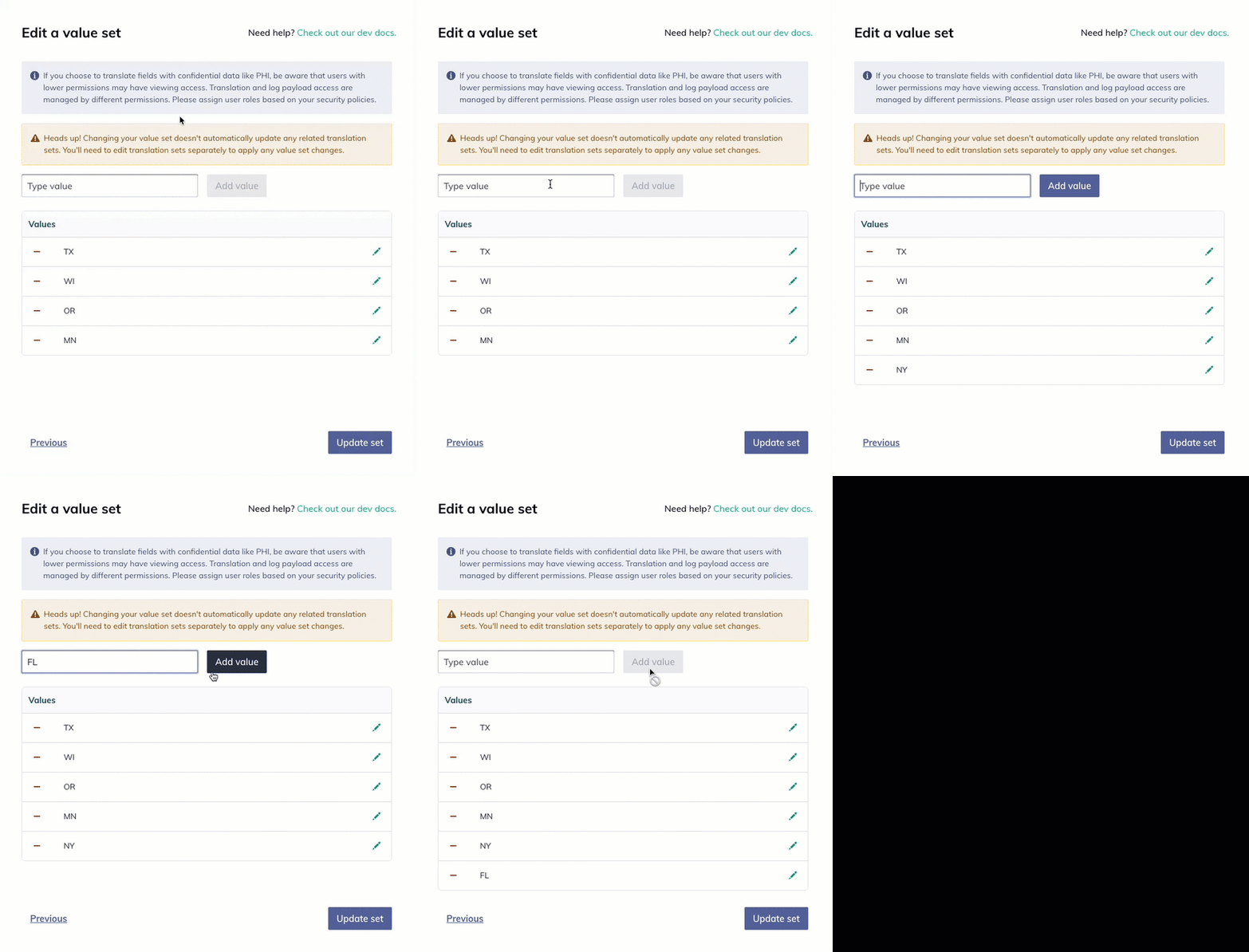
- To add a value, type a new value then press Enter or click the Add value button.

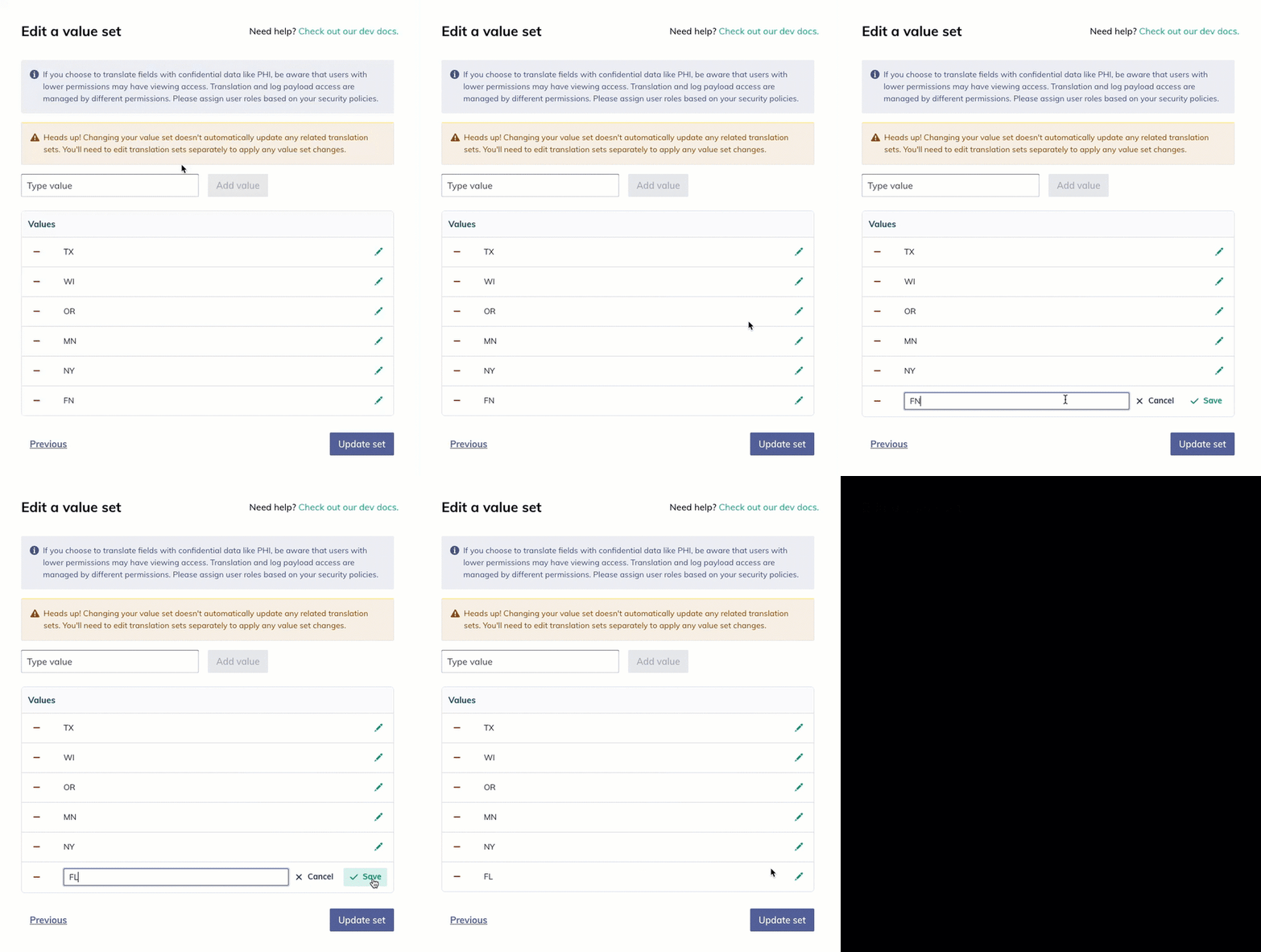
Add a value - To edit an existing value, click the pencil icon next to the right of the value. Edit the value, then click the Save button.

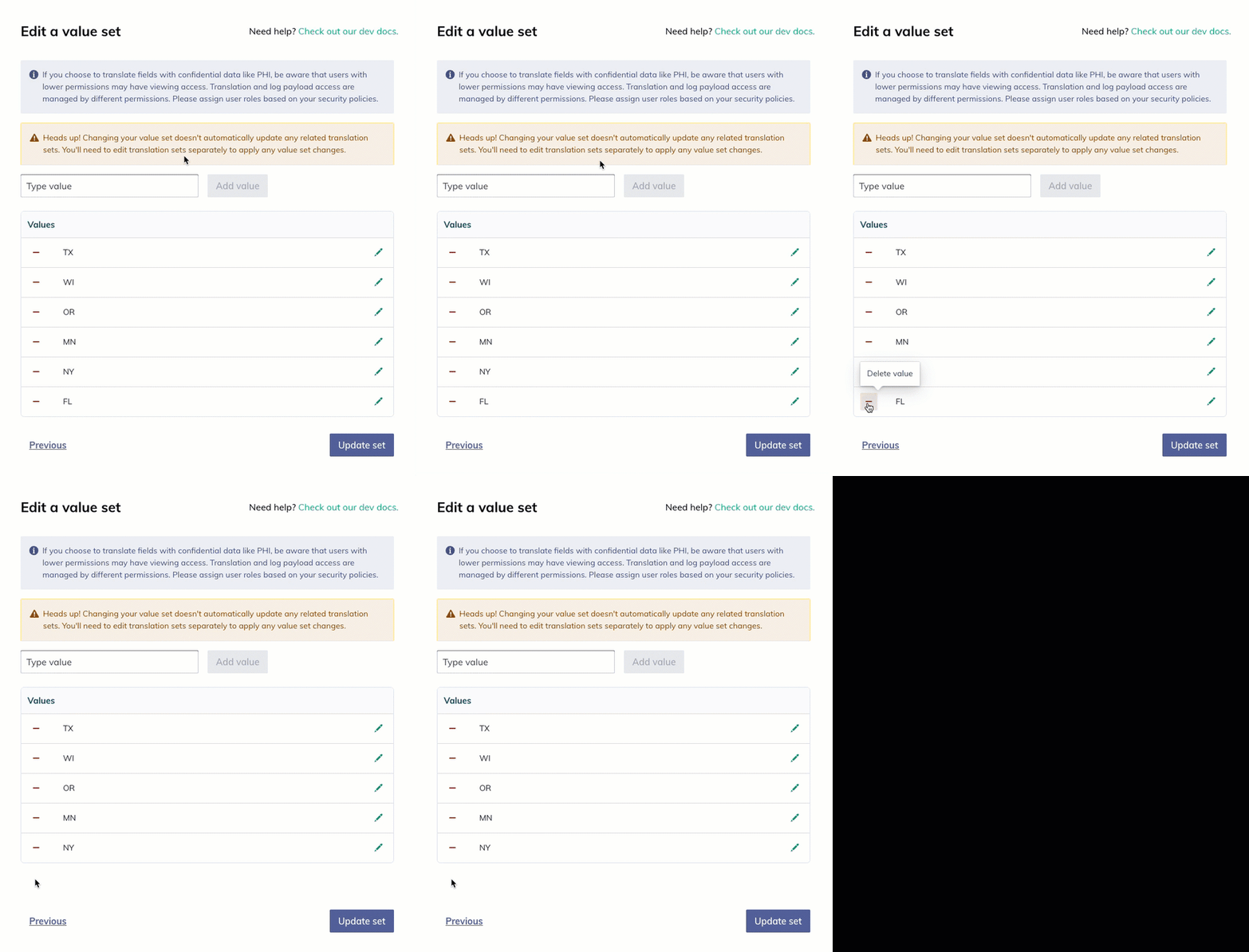
Edit a value - To delete a value, click the minus icon to the left of the value.

Delete a value
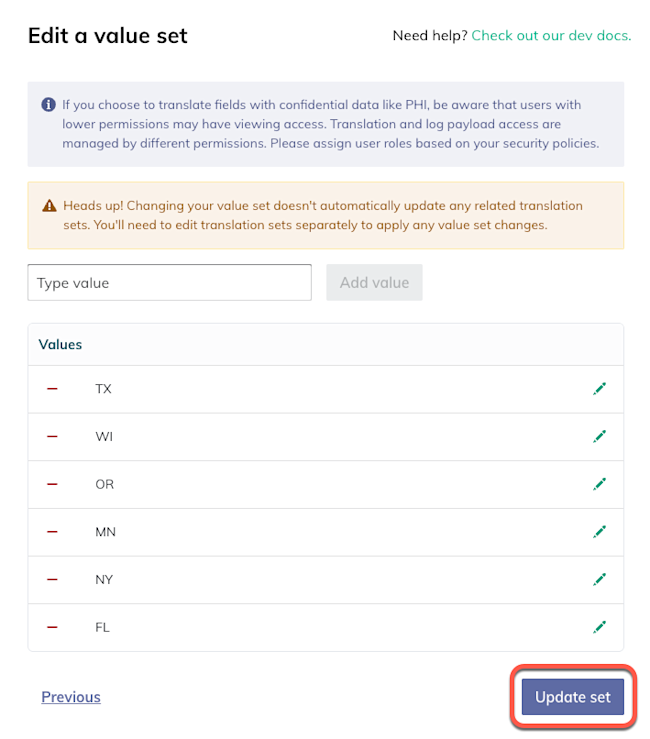
- When you’re finished, click the Update set button.

Update a value set - This creates a new version of the value set. To apply it, you must edit the associated translation set. Editing the translation set automatically pulls the new value set version forward.
- Navigate to the associated translation set. Click the Edit button.
- In the translation set, update the value mappings based on the edits you made to the value set. When you’re finished, click the Update set button.




Can’t delete an active value set
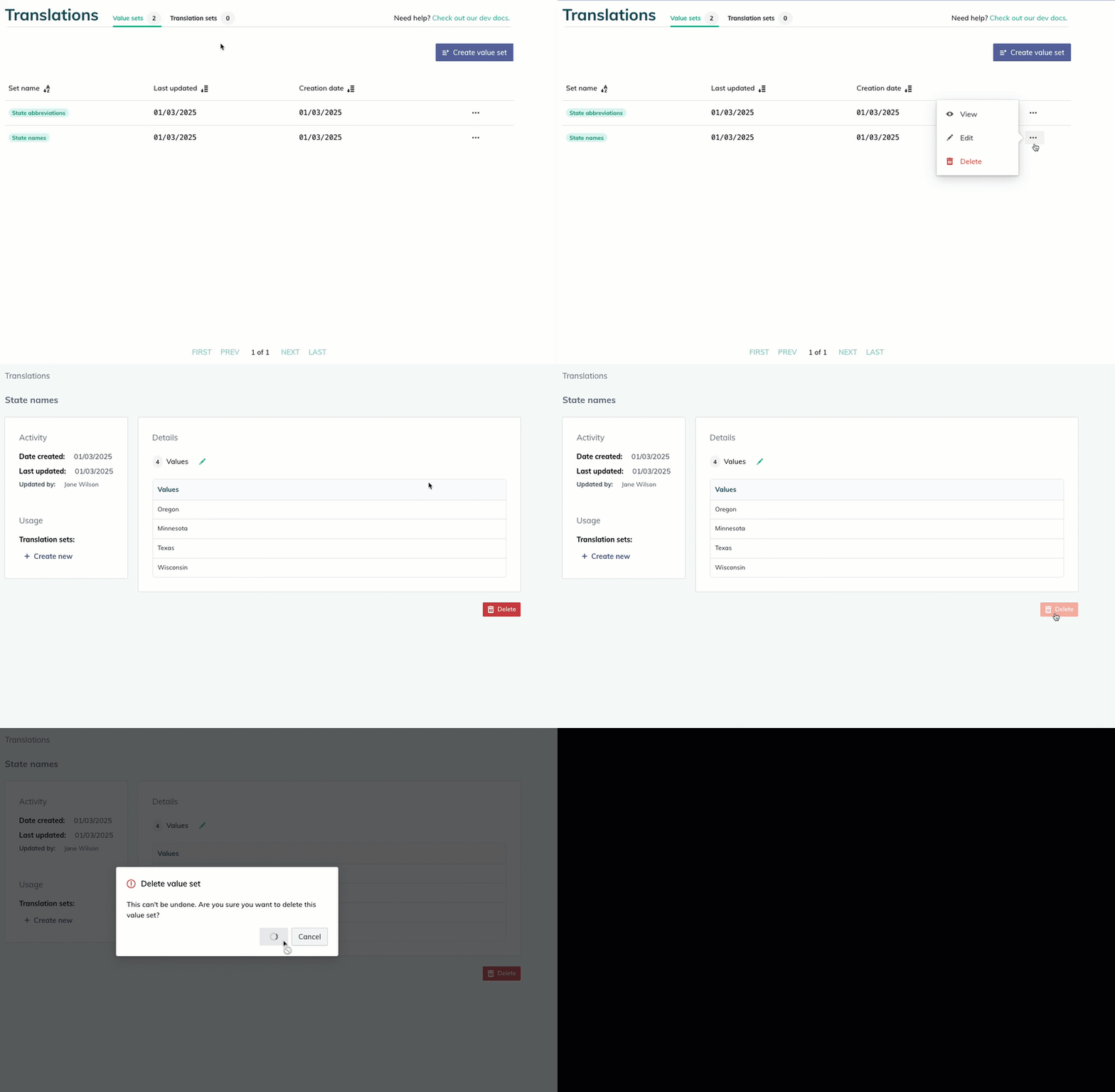
- Follow the instructions to view existing value sets.
- Find the value set you want to delete. Click the three-dots icon.
- On the drop-down menu, click the Delete button. Alternatively, click the View button to review any details prior to deleting. On the Details page, click the Delete button.

Delete a value set