Last updated: Dec 8, 2025
DEVELOPER
HEALTH TECH VENDOR
HCO
This article is for legacy users since legacy API keys have been deprecated. Learn how to use OAuth API keys, which are our preferred authentication method.
If you lose or expose the secret value of a legacy API key, follow the steps below to generate a new one.
- A user must be assigned to an engineer role to create or authenticate API keys. Learn about user roles.
- Your legacy API key must already have an existing secret value set.
- Log in to the Redox dashboard.
- From the navigation menu, click the Developer page.
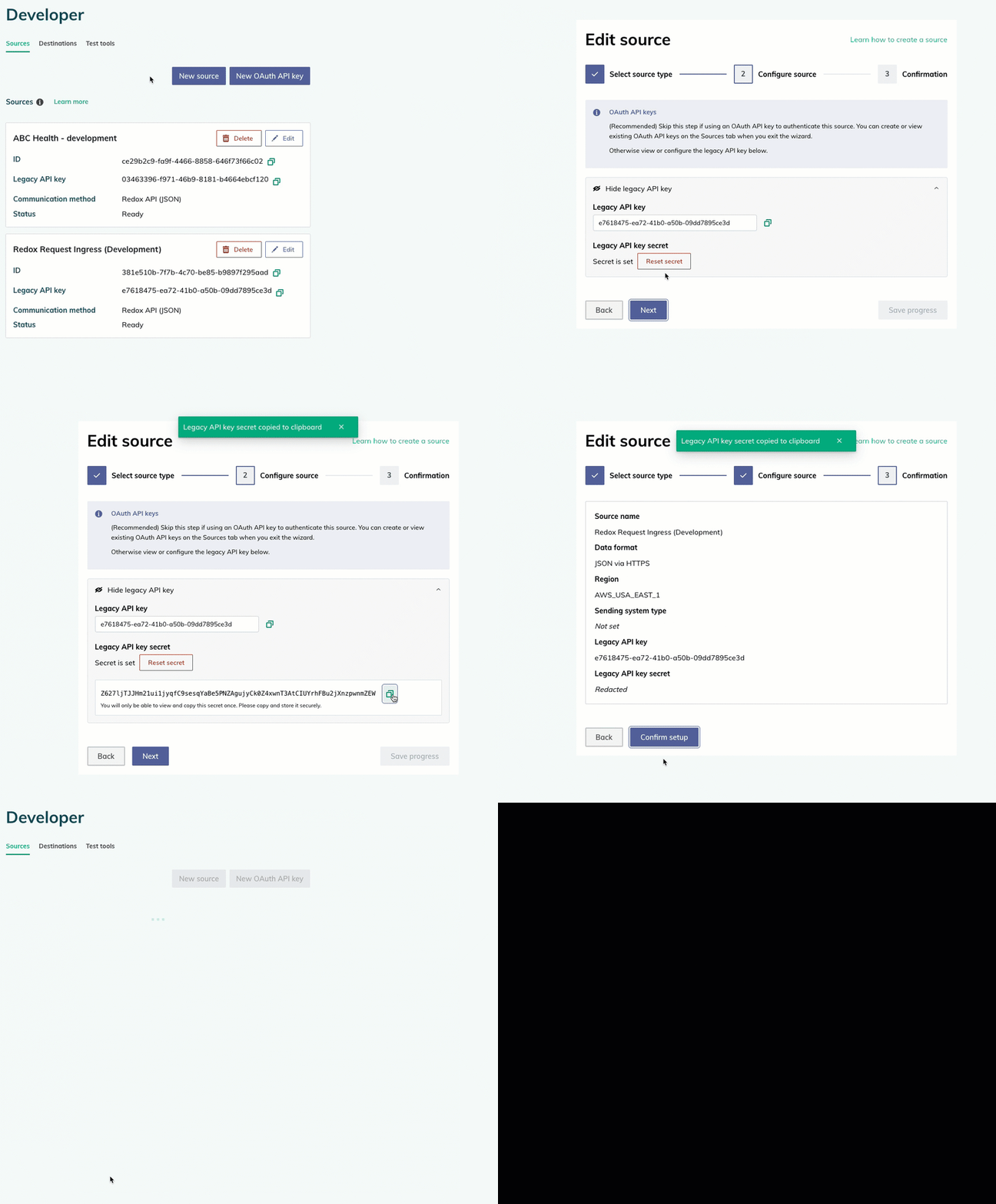
- By default, the Sources tab opens with any configured sources and OAuth API keys. To view a specific source’s configuration details, click the Edit button on its tile.
- The source wizard opens. Click the Next button to navigate to the Configure source tab.
- Click the Show legacy API key button.
- In the Secret field, click the Reset secret button.
- The new secret value displays only once. Click the Copy icon to copy the new secret value before leaving the page. Then store the value securely.
- Click the Next button to navigate to the Confirmation tab.
- Review the source settings, then click the Confirm setup button to save your changes.
- Click the Exit button to return to the Sources tab.

Generate a new secret value for a legacy API key