Beta feature
A subscription links a source, destination, and data model to define how and what data is exchanged between two organizations. Learn about subscriptions. We support creating a one-party subscription, which means your organization needs to own both the source and destination.
Specifically, this article is for cloud connectivity users who want to hydrate a cloud environment. For non-cloud users, learn how to request a connection instead to expand your integration with a new or existing partner.
- A user must be assigned to an engineer role to create a subscription. Learn about user roles.
- Create a source that sends and normalizes your HL7v2 feed to FHIR®. Learn how to set up sources.
- Create and verify your cloud destination. Learn how to set up destinations. Your source and cloud destination must be fully configured (i.e., not “in progress” status) before you can create a subscription.
Follow these steps to create a new subscription to hydrate your cloud environment.
- Log in to the Redox dashboard.
- From the navigation menu, click the Connections page.
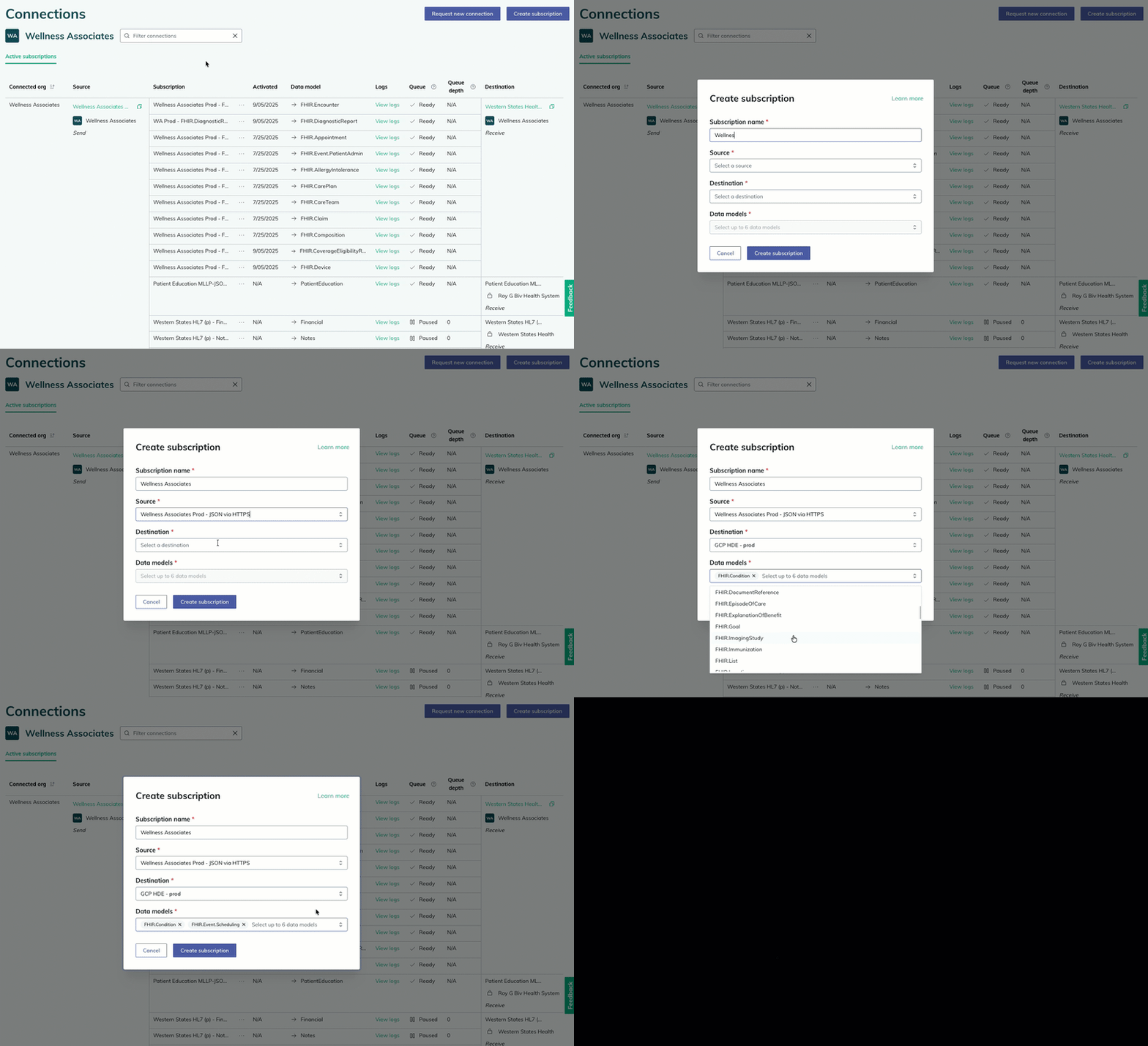
- The Active subscriptions tab opens with all your existing subscriptions. Click the Create subscription button in the top-right corner.
- A modal opens. Fill out these fields:
- Subscription name: Enter a human-readable name for the subscription.
- Source: From the drop-down options, select the source that will initiate the data exchange.
- Destination: From the drop-down options, select the destination where the data will be delivered.
- Data models: From the list, select Redox FHIR® data model(s). Or, you can type in names to filter the list. A new subscription is created for each data model you select. In other words, if you select 2 data models, 2 subscriptions are created. You can create up to 6 subscriptions at a time.What’s a Redox data model?See these API specs to see a full list of available FHIR® data models.Unique combinations for subscriptions
- Click the Create subscription button.
- The new subscription appears in the table.

Create a new subscription