
You can remove any user from a Redox organization. Doing so means the user loses access to the entire organization and all its environments. Learn more about Redox organizations and users.
There are extra steps in your identity provider (IdP) if you have an SSO Redox organization.
Platform API endpoints
- A user must be assigned to an organization owner or admin role to manage users. Learn more about user roles.
- Log in to the dashboard.
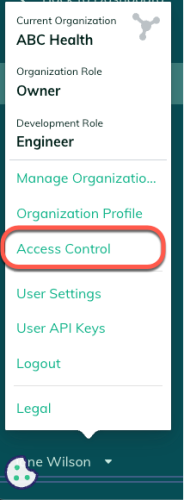
- Click your username at the bottom of the navigation menu.
- From the user menu, select the Access Control option.

Access control option - The Access Control page opens with three tabs. By default, a list of active organization users appears on the Users tab. Find the user you want to update and click the Action (three dots) button.Role permissions
- From the drop-down menu, select the Quick View option.
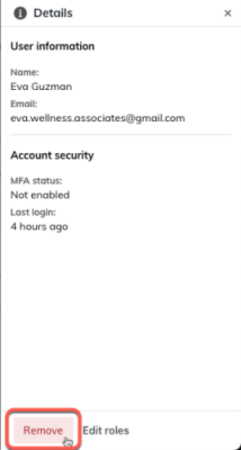
- The Details panel opens with user information, MFA status, and login info. Click the Remove button to remove the user from the organization.

Remove a user from a Redox organization


For SSO-enabled organizations, you must complete steps in both your identity provider (IdP) and the Redox dashboard. Refer to your identity provider’s docs for managing users in their system.
- Remove a user from your IdP.
- Remove the user record from the Redox organization. If you only remove the user from the IdP, the user still appears in the active users list of the Redox organization (though they couldn’t log in). You should remove the record in Redox to keep your audit logs clean.