A user must have an organization role to participate in a Redox organization. To view or participate in the environments within the organization, a user must have an environment role for each one . Learn more about user roles.
Platform API endpoints
- A user must be assigned to an organization owner role to manage organization roles.
- A user must be assigned to either an organization owner or admin role to manage environment roles. Learn more about user roles.
- Log in to the dashboard.
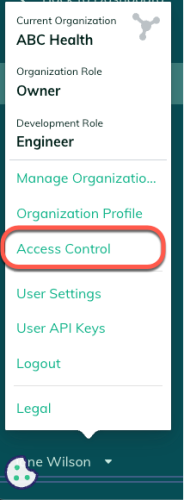
- Click your username at the bottom of the navigation menu.
- From the user menu, select the Access Control option.

Access control option - The Access Control section opens with three tabs. By default, the Users tab opens.Role permissions
- A list of active users in the organization displays. Find the user you want to review.
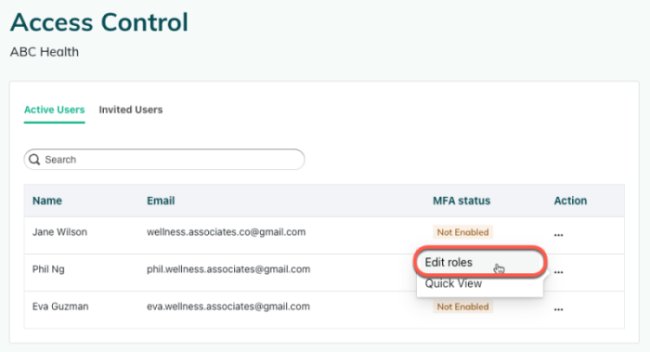
- In the user’s row, click the Action (three dots) button.
- Select the Edit roles option from the drop-down menu.

Edit roles option - The user’s role profile opens with their current organization and environment role assignments.


- Log in to the dashboard.
- Click your username at the bottom of the navigation menu.
- On the user menu, select the Access Control option.

Access control option - The Access Control page opens with three tabs. Click the Environments tab.
- Each environment in the organization is listed with its number of users. Click the Action (three dots) button and select the Detailed view option from the drop-down menu.
- A list of the environment’s users displays with their corresponding email address and user role.
Different roles for different environments
By default, a user is assigned to a member role in a Redox organization. Change a user’s role in their user profile.
- Follow the instructions for viewing a specific user’s roles.
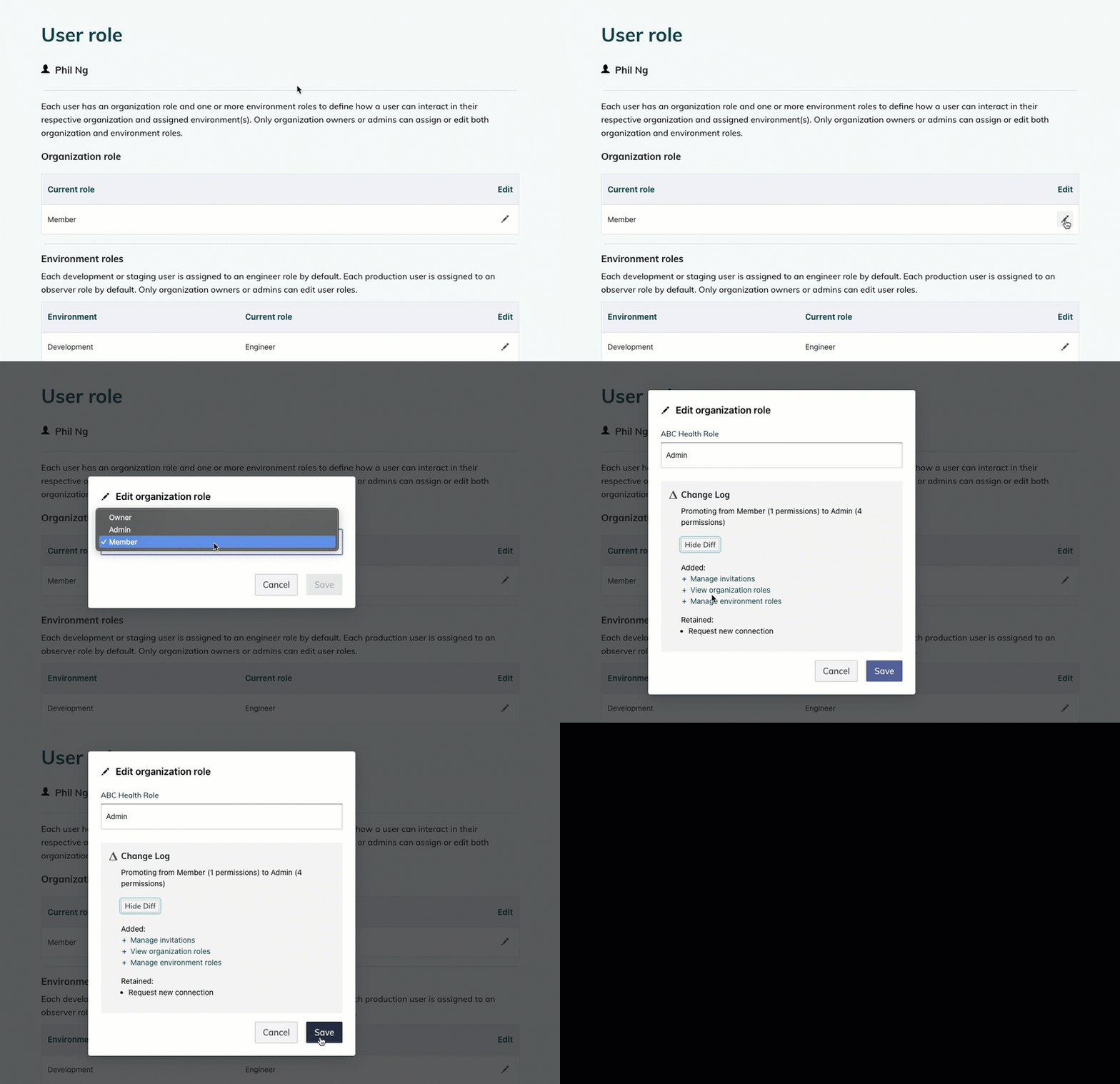
- Under the Organization role section, click the Edit icon to change the user’s current organization role.
- A modal opens. Click the Role drop-down and select the organization role you want to assign to this user.
- If you select a new organization role assignment, a change log summarizes how many permissions the user will gain or lose. Click the View Diff button to see all the added, removed, or retained permissions.
- After reviewing the changes, click the Save button. Or click the Cancel button to discard any changes.

Change a user's organization role

Remove a user’s organization role
- Follow the instructions for viewing a specific user’s roles.
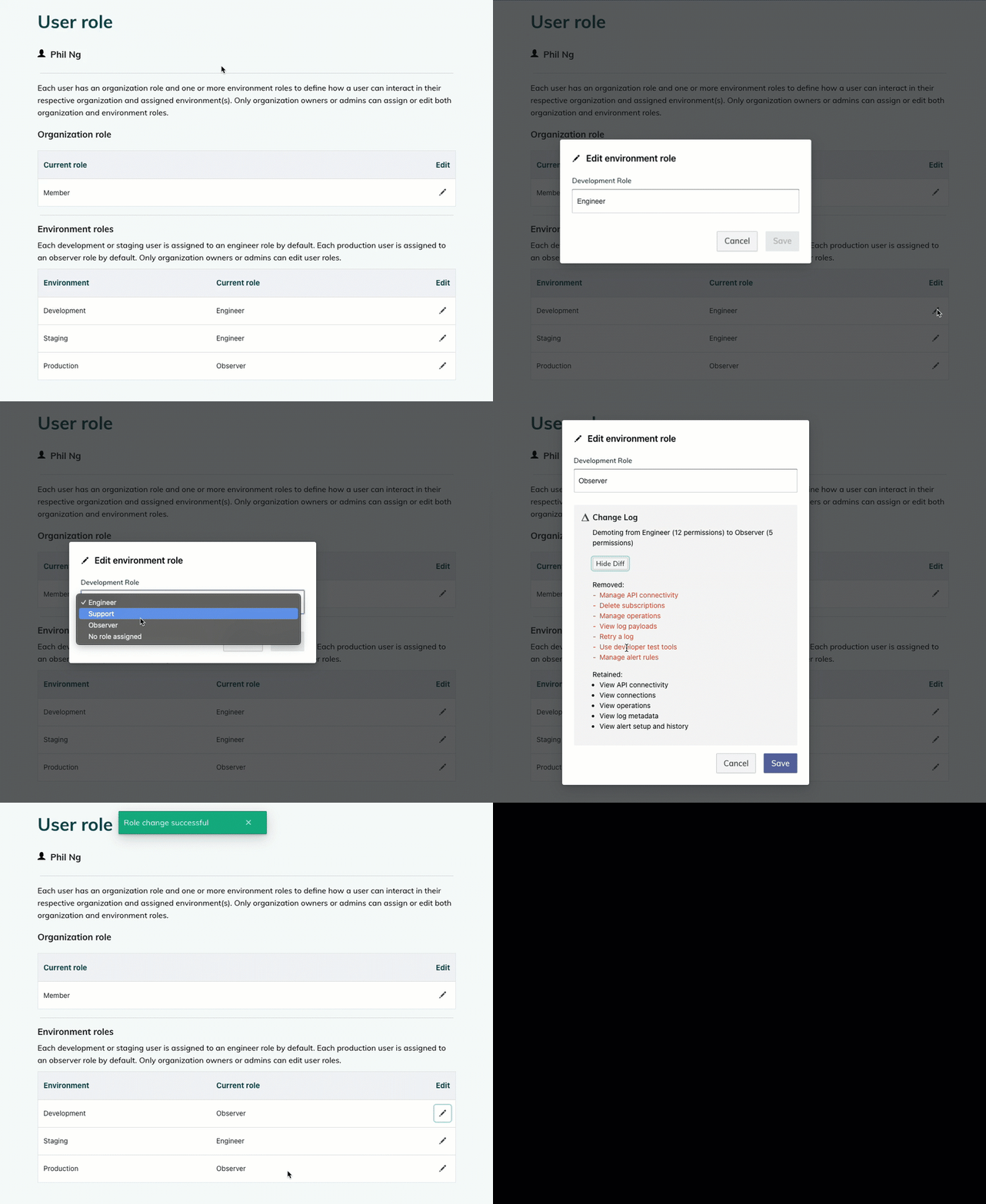
- Under the Environment roles section, click the Edit icon to change the user’s current role for a given environment.
- A modal opens. Click the Role drop-down and select the environment role you want to assign to this user. To remove a user’s access to an environment, select the No role assigned option.
- A change log appears, which summarizes which permissions the user will gain or lose. Click the View Diff button to see all the added, removed, or retained permissions.
- After reviewing the changes, click the Save button. Or click the Cancel button to discard any changes.

Change a user’s environment role