
You can invite a user to join an existing organization in the Redox dashboard. Learn more about Redox organizations and users.
We don’t currently support adding a user via API.
- A user must be assigned to an organization owner or admin role to manage users. Learn more about user roles.
- Log in to the dashboard.
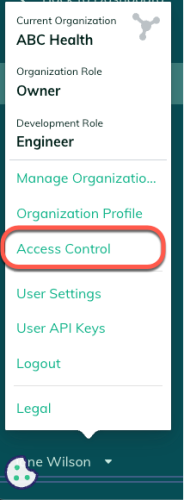
- Click your username at the bottom of the navigation menu.
- From the user menu, select the Access Control option.

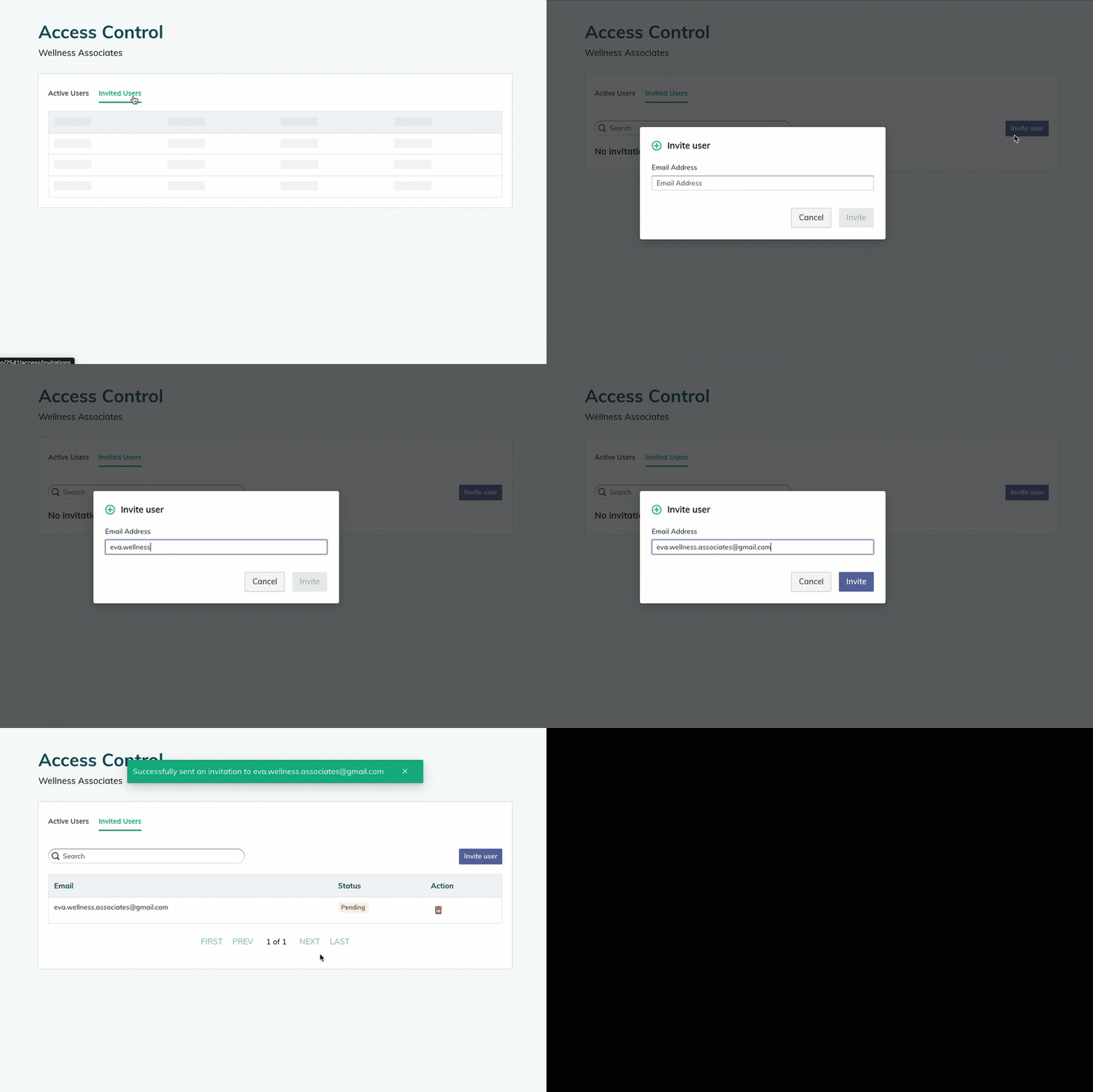
Access control option - The Access Control page opens with three tabs. By default, a list of active organization users appears on the Users tab. Click the Invited Users tab.Not available for SSO organizationsRole permissions
- Any pending invitations display. Click the Invite user button.
- A modal opens. Enter the email address of the user to add to the organization.
- Click the Invite button to send the email invitation. The invited user shows a Pending status.

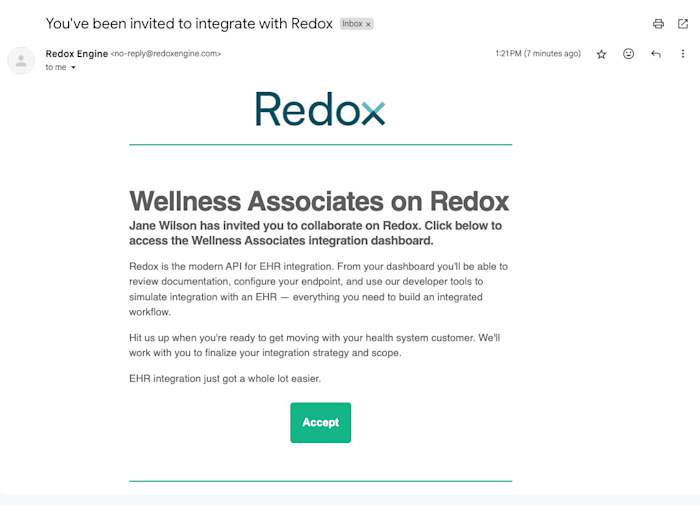
Invite a new user to your Redox organization - The invited user receives an email from Redox with an invitation link. The invited user clicks the Accept button.

Accept the invitation to join a Redox organization - The dashboard login page opens. A new user must create a Redox account, while an existing user must log in.
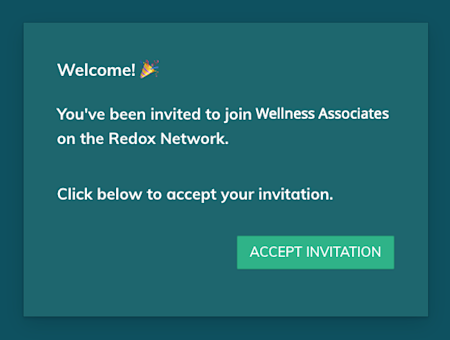
- After logging in, a welcome page appears with the name of the organization. Click the Accept Invitation button to join the organization.

Accept invitation - All users that accept the invitation appear on the Active Users tab.




Membership limit
For SSO-enabled organizations, you must complete steps in both your identity provider (IdP) and the Redox dashboard. Refer to your identity provider’s docs for managing users in their system.
- Add a user in your IdP.
- The user logs into the Redox dashboard. This triggers the membership sync from the IdP to Redox.
- The user appears in the Redox organization. Assign or change user role.